PDF Export for Laser Cutting

PDF Export for Laser Cutting

Creating a “laserable” PDF in Archicad

  • Make sure that all lines/areas to be processed by the laser cutter meet the following parameters:
    Cut = Red(RGB 255, 0, 0) (Hairline / 0.01mm thick)
    Engraved Line = Black (RGB 0, 0, 0) (Hairline / 0.01mm thick)
    Engraved Area = Blue  (RGB 0, 0,255) (Hairline / 0.01mm thick)
  • Degroup all drawn elements
  • Adapt “Page Options…” to your needs.
  • Go to “Document Options”.
    • Deselecting “Export Layers to PDF” to avoid exporting hidden layers leads to better results in some cases.
    • Setting the “Arc Resolution” up to the max leads to better results in some cases. The Arc Resolution Setting reflects the fact, that the PDF Format generated by Archicad does not recognize arcs/circles and must approximate them, by converting them to Polygons. 
  • If you are using Archicad Education Version, it might be helpful to edit your PDF in Adobe Acrobat, Adobe Illustrator or a similar graphics program before you import it into the Laser Cutter Software Ruby:
    • delete all unnecessary lines/areas in your file (watermarks, hatches or frames around your drawing. Remember to delete all the white lines/areas in the background and as well as in the foreground of your file.
    • In Adobe Illustrator: Switch to vector view to see all elements in your drawings and delete the ones, which are not intended to be there.
Creating a “laserable” PDF in Rhino

  • Make sure that all lines/areas to be processed by the laser cutter meet the following parameters:
    Cut = Red(RGB 255, 0, 0) (Hairline / 0.01mm thick)
    Engraved Line = Black (RGB 0, 0, 0) (Hairline / 0.01mm thick)
    Engraved Area = Blue  (RGB 0, 0,255) (Hairline / 0.01mm thick)
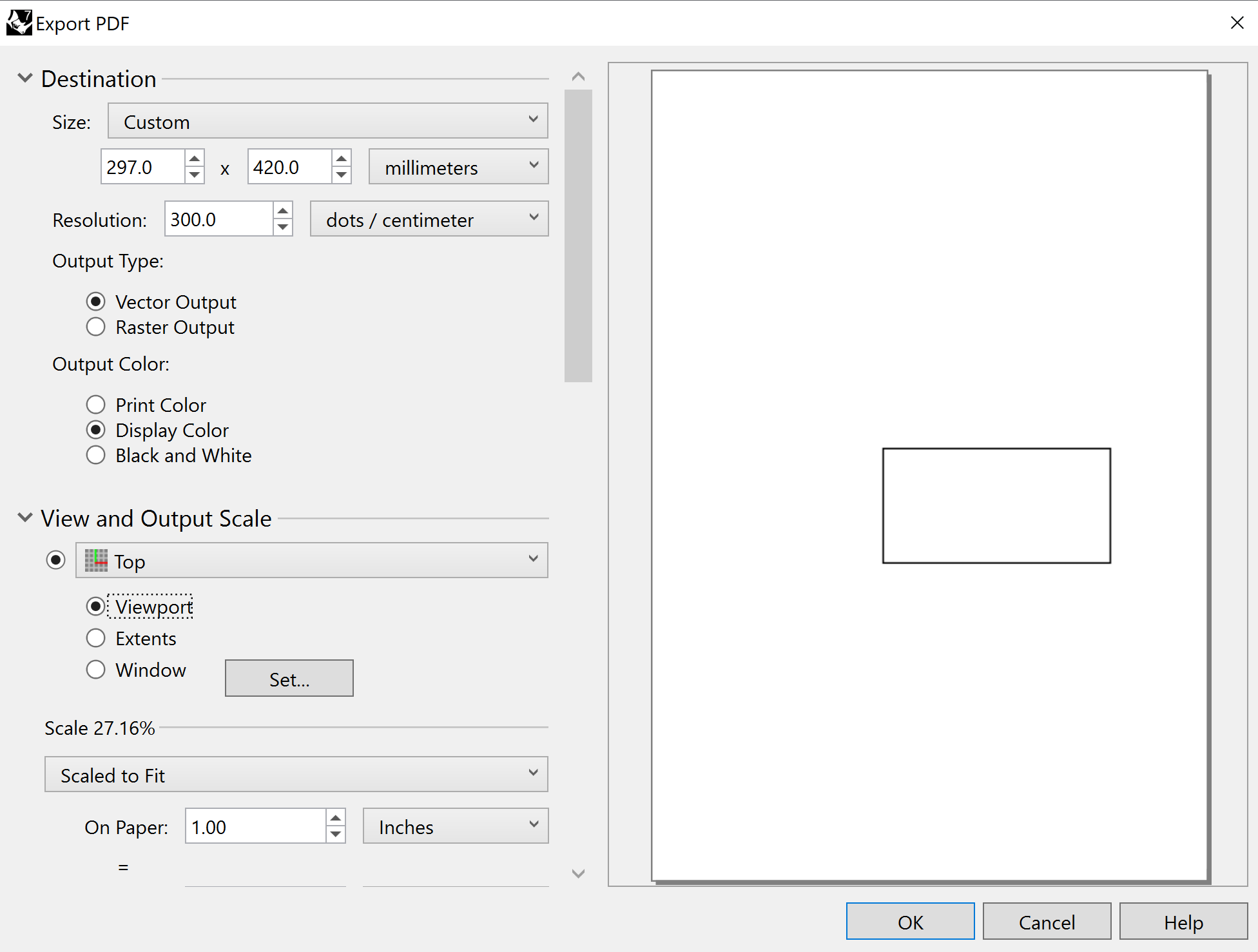
  • Choose “Vector Output” and “Display Color” for the export
  • It might be helpful to check your PDF in Adobe Acrobat, Adobe Illustrator or in a similar graphics program before you import it into the Laser Cutter Software Ruby:
    • delete all unnecessary lines/areas in your file (watermarks, hatches or frames around your drawing.
    • In Adobe Illustrator: Switch to vector view to see all elements in your drawings and delete the ones, which are not intended to be there.


Creating a “laserable” PDF  in Vectorworks

  • Make sure that all lines/areas to be processed by the laser cutter meet the following parameters:
    Cut = Red(RGB 255, 0, 0) (Hairline / 0.01mm thick)
    Engraved Line = Black (RGB 0, 0, 0) (Hairline / 0.01mm thick)
    Engraved Area = Blue  (RGB 0, 0,255) (Hairline / 0.01mm thick)
  • Degroup all drawn elements
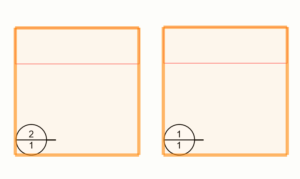
  • Check that the Layers to export are not overlapping.
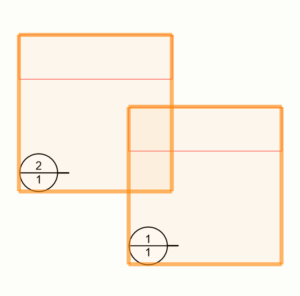
 

Wrong.

Correct.


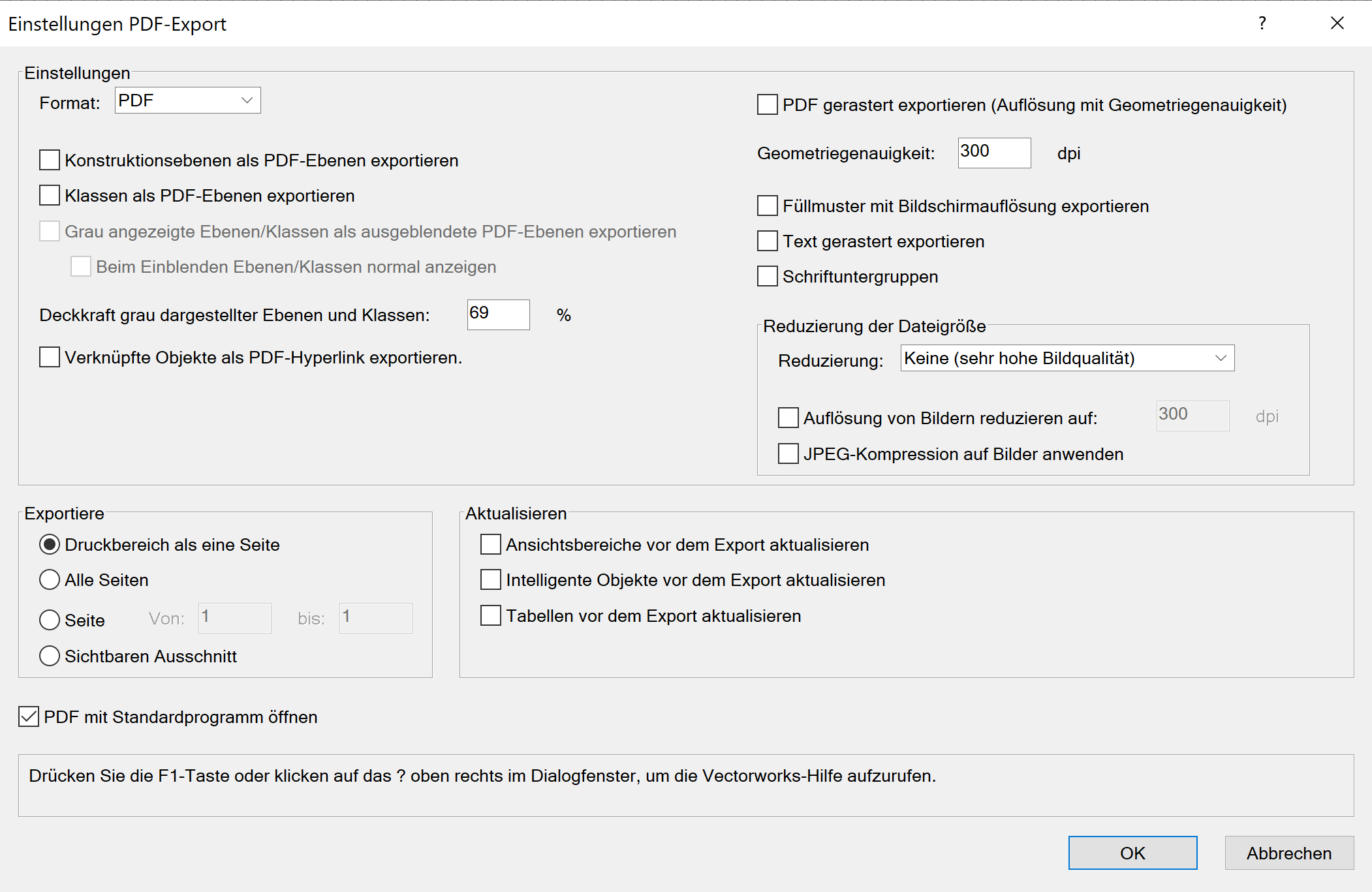
  • Deselecting “Export Layers to PDF” to avoid exporting hidden layers.
  • It might be helpful to check your PDF in Adobe Acrobat, Adobe Illustrator or in a similar graphics program before you import it into the Laser Cutter Software Ruby:
    • delete all unnecessary lines/areas in your file (watermarks, hatches or frames around your drawing.
    • In Adobe Illustrator: Switch to vector view to see all elements in your drawings and delete the ones, which are not intended to be there.


Creating a “laserable” PDF  in AutoCad

  • Make sure that all lines/areas to be processed by the laser cutter meet the following parameters:
    Cut = Red(RGB 255, 0, 0) (Hairline / 0.03mm thick)
    Engraved Line = Black (RGB 0, 0, 0) (Hairline / 0.03mm thick)
    Engraved Area = Blue  (RGB 0, 0,255) (Hairline / 0.03mm thick)
  • It might be helpful to check your PDF in Adobe Acrobat, Adobe Illustrator or in a similar graphics program before you import it into the Laser Cutter Software Ruby:
    • delete all unnecessary lines/areas in your file (watermarks, hatches or frames around your drawing.
    • In Adobe Illustrator: Switch to vector view to see all elements in your drawings and delete the ones, which are not intended to be there.

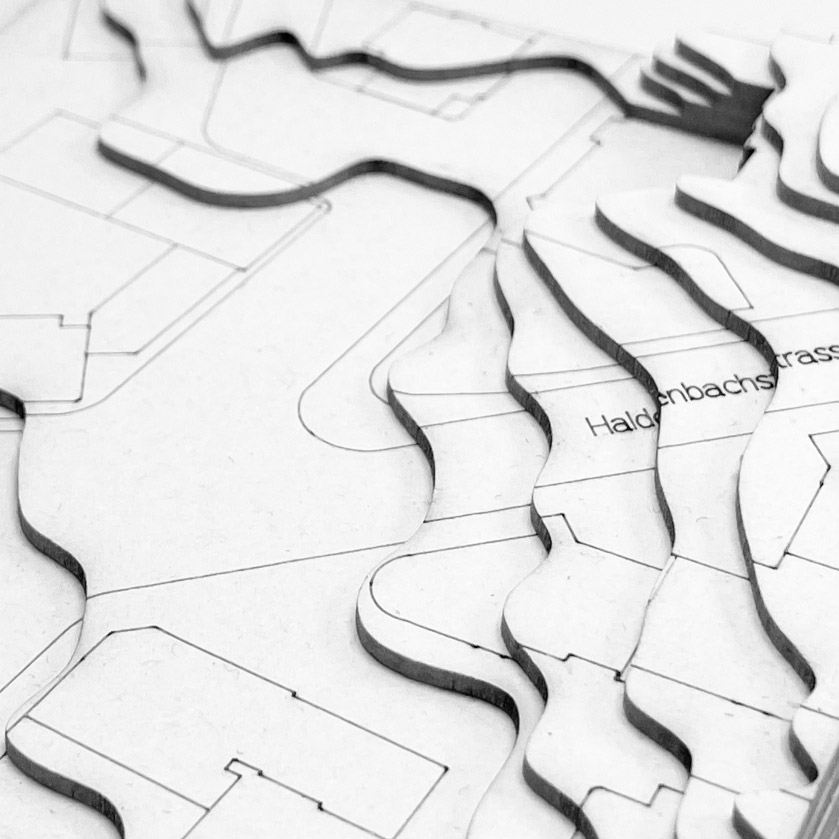
Isocurves

Landscape Model (Laser Cutting)

Laserübung

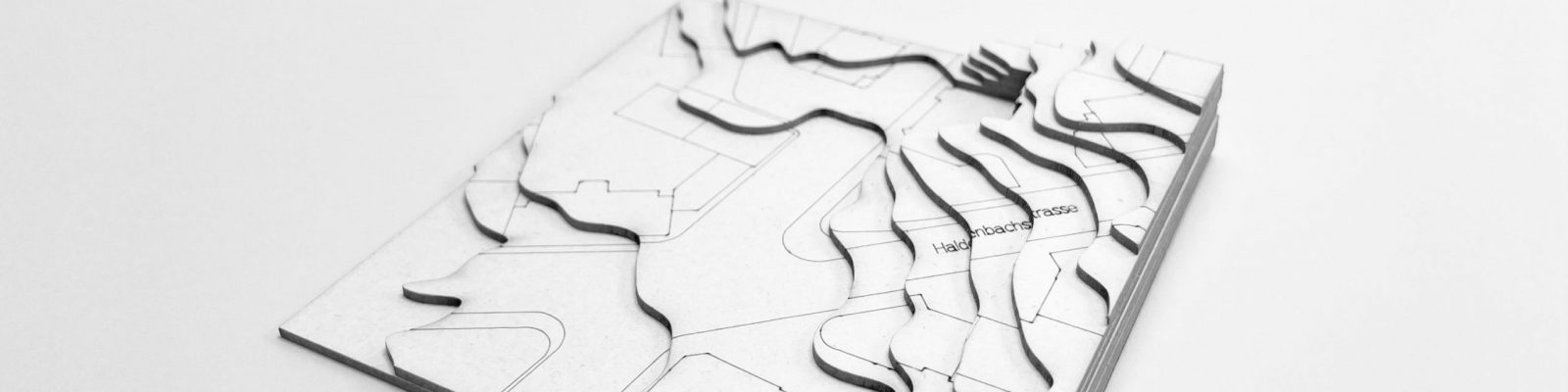
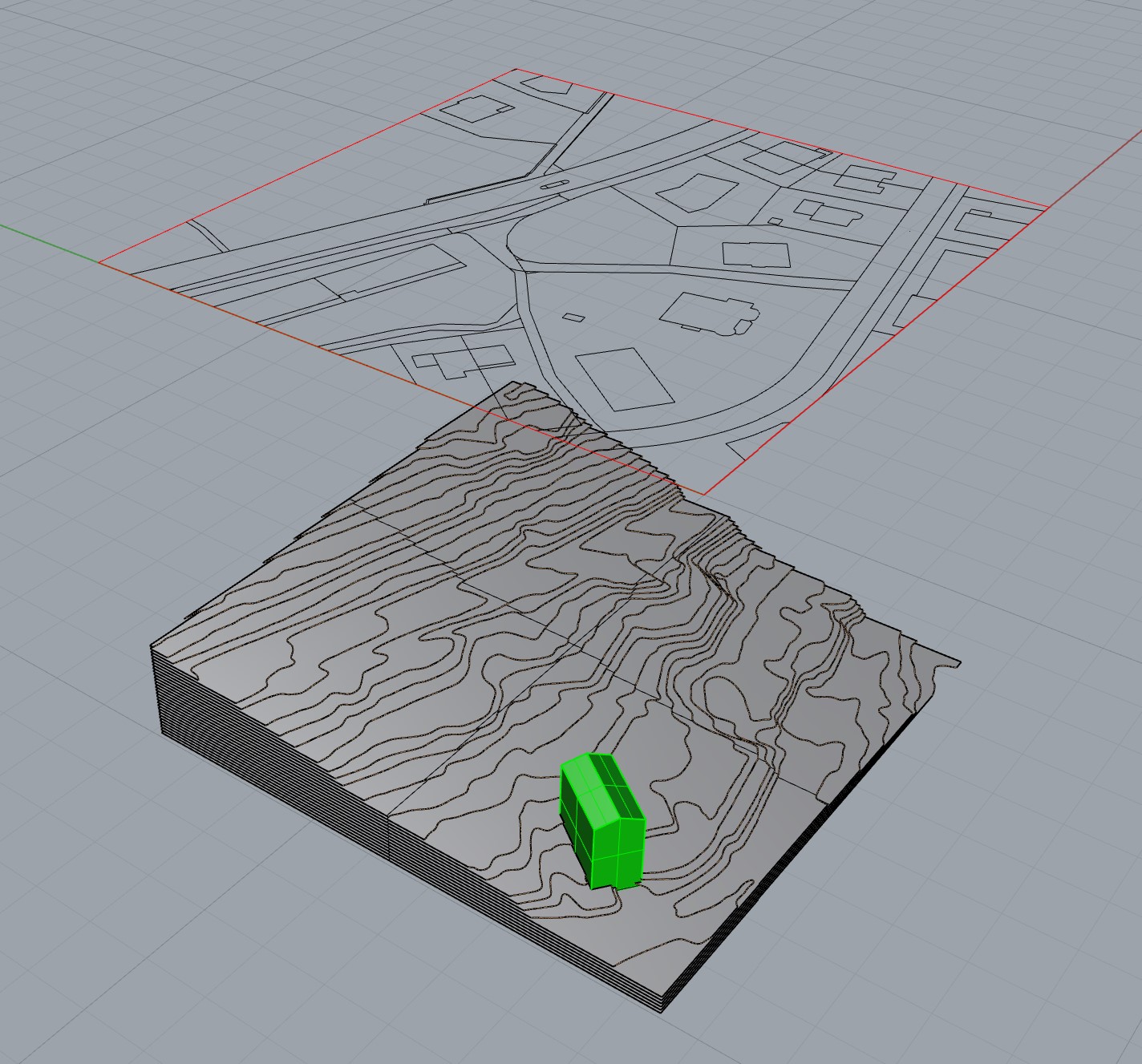
How to build a landscape model with cut contour lines, engraved cadastre data and a 3d-printed building, scale 1:1000:

  • Use the GIS browser to select a 100x100m plot in Zurich.
  • The model should feature different contours, engraved information showing streets and plots (AV-Data).  
  • Select one plot for a 3d-printed building.

Goals

  1. Learn how to prepare and acquire data for landscape models
  2. Understand the basics of working with Rhino3d
  3. Know and understand the use of the Isohypsen-Rhino-Plugin
  4. Learn how to operate the laser cutter and 3d-printer
 

Material

  • 1 mm white cardboard or other, approx. 900 mm x 600 mm
  • Spray adhesive
 

Additional Learning Material (Tutorials)

Wahlfach HS21

Wahlfach HS21

Modelmaking

Teilnehmende

Teaching Team:
 
Katrin Derleth, Alessandro Tellini,
Christian Egli

Studierende:

Ammann Rosa, Lewis Beauchamp, Ilena Bussi, Saraja Gantner, Josua Hefti, Jökull Jónsson, Lara Krieger, Luca Lepori, Florin Meier, Raja Stettler, Anton Von Holst, Cristina Wiele

Facade

Facade

Scale: 1:50
Material: 2mm Gray Cardboard
Machine: Zünd

The Basic Design

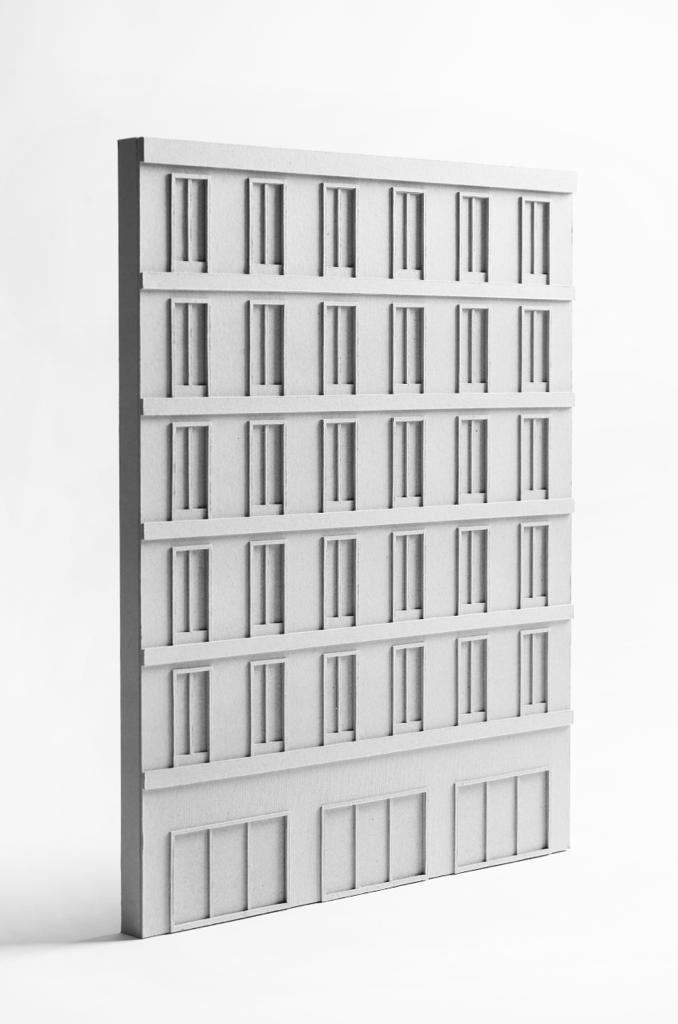
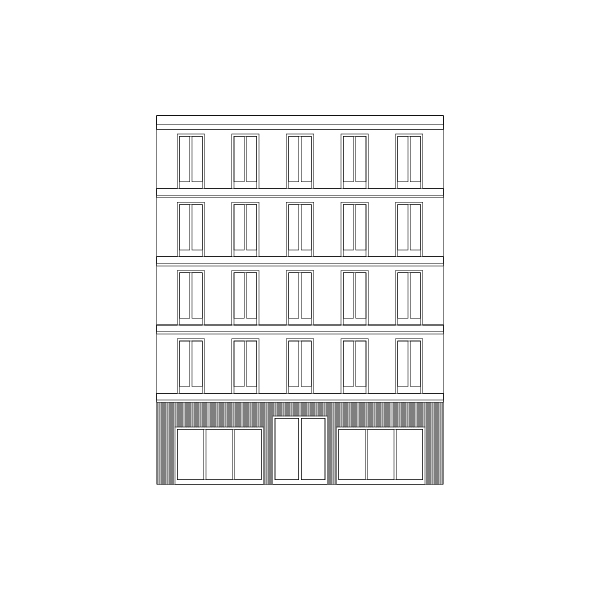
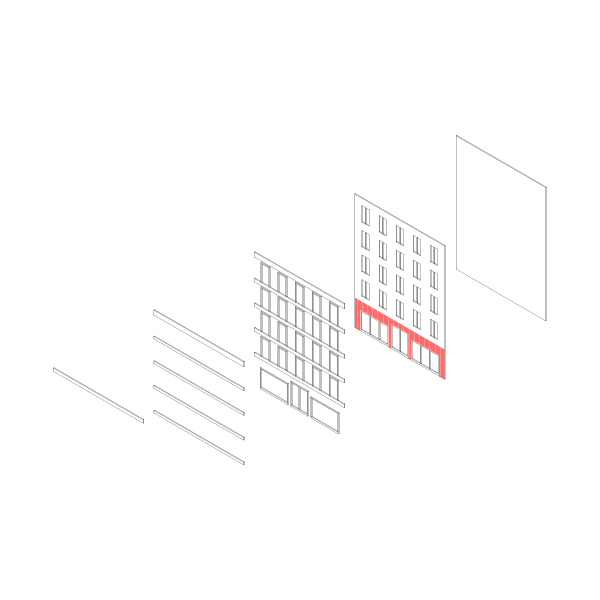
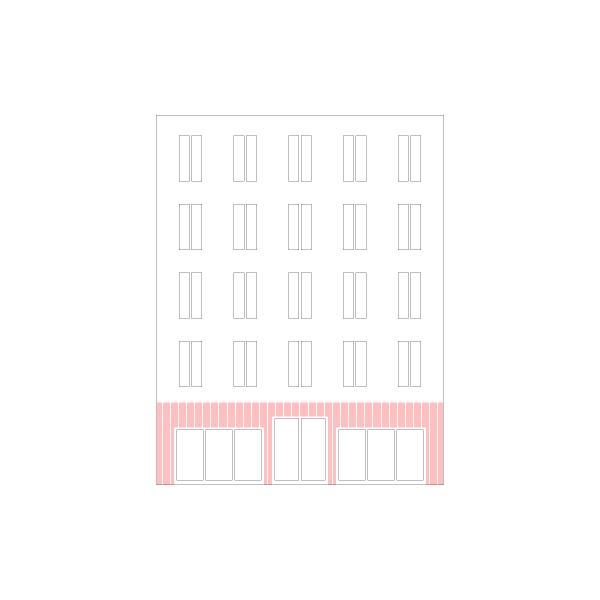
A certain amount of abstraction and discretization is necessary to represent the details of a facade on a model scale. This example guides you through the required steps and exemplifies the description-making process. 2mm cardboard is equal to 10cm on a scale of 1:50. This is a reasonable starting point for the material thickness since many elements like window reveals, ledges, and other features typically present on a facade, fall into the range of the 10cm separation. A layered facade can, in principle, have as many elements as needed, but in practice, it is more common to divide it into the following layers: 

  1. Fist layer – this can be a simple piece of card or some MDF, depending on the model’s overall structure. It is not uncommon to have this layer colored or covered with a thin foil to imitate the windows or represent the interior.
  2. Window Layer – this layer has all the cutouts for the windows and doors and sometimes scoring to suggest a particular facade material.
  3. Window Reveal Layer – depending on the design, this includes any raised details that correspond to the windows, doors, and other openings. 
  4. First, Second… Ledge Layer – These are optional and show essential elements that characterize the facade. Depending on the model’s design and scale, you may want to extend these layers to show balconies and other features. 

As tempting as it might be, it is wise to consider precisely what type of detail needs to be shown in the model. Consider the model as a vehicle to communicate your ideas. In that function, the models converse with you and others. The clearer the model communicates, the better it is for the conversation, and you do not get lost in every tiny detail. 

Examples

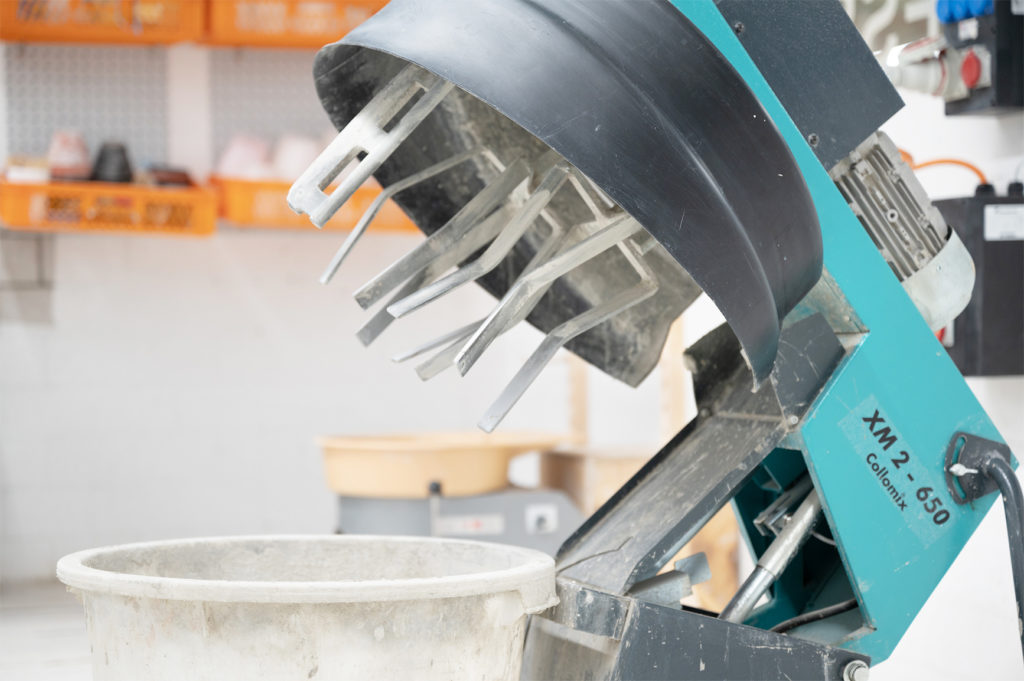
Concrete Mixer

Concrete Mixer

General Information

1 machine available

For Concrete and Cement only!

In order to use this machine you must have succesfully completed the following courses:

  • general safety introduction course
  • introduction to the plaster workshop
  • Tie long hair back
  • Wear proper workshop clothes
  • Wear a dust mask
  • Wear safety glasses
Please check our workshop rules for more detailed safety instructions.
  • Concrete
  • Cement

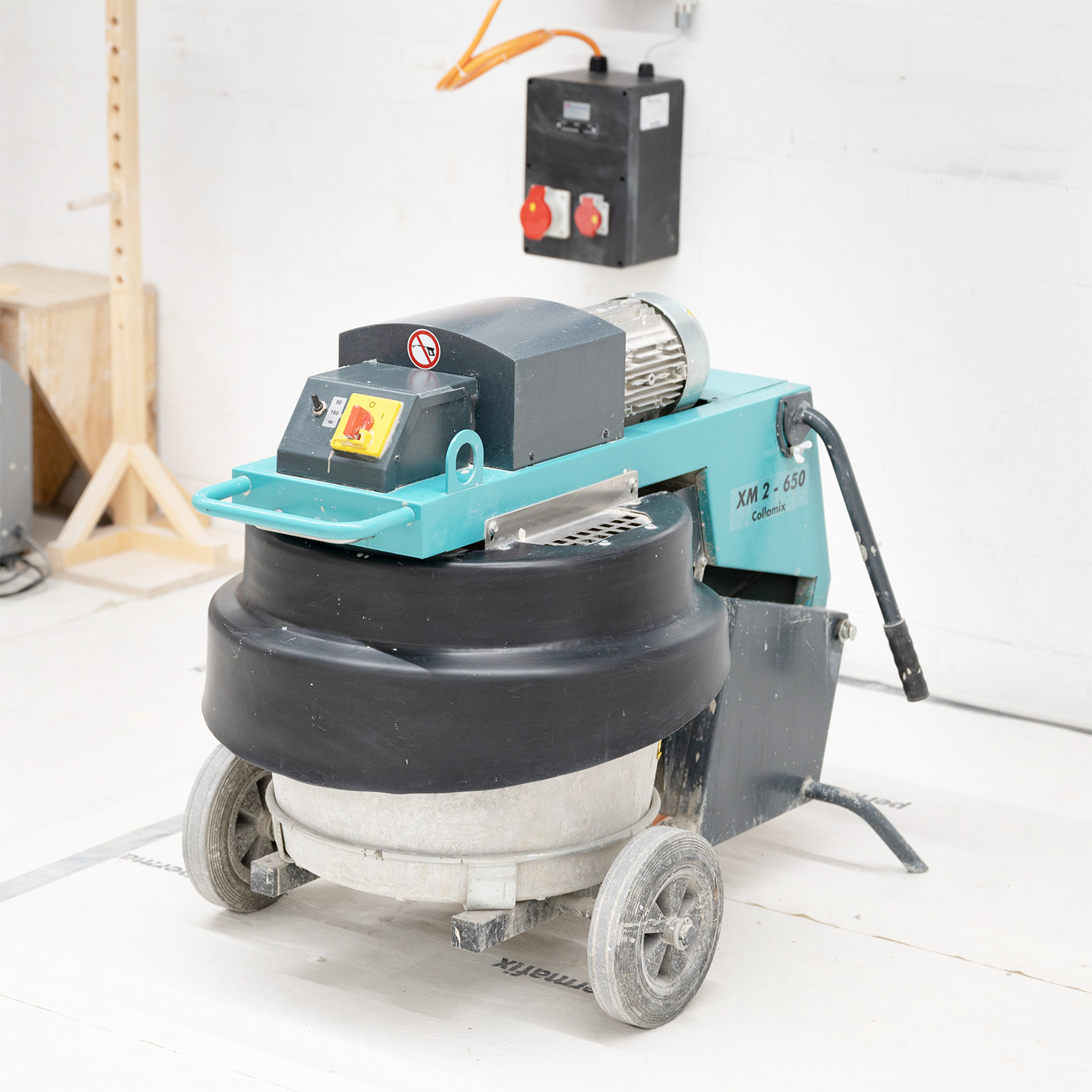
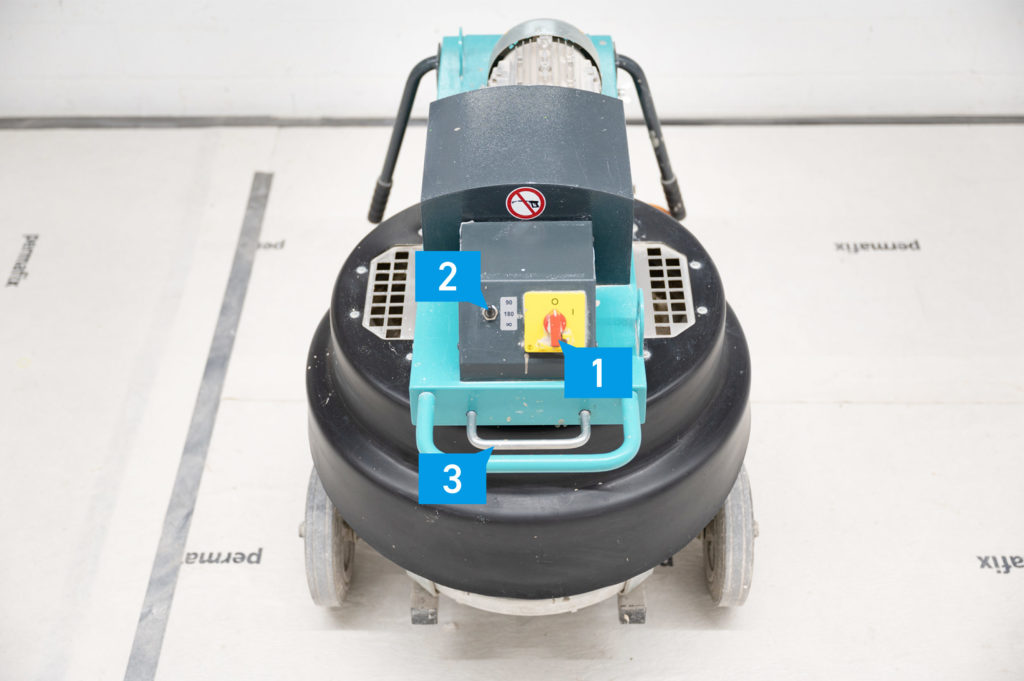
Concrete Mixer overview

  1. Power switch
  2. Timer
  3. Opening Handle
  • Select mixing time (2) (90 or 180 seconds, at ∞ you have to switch off manually)
  • Open the lid (3) and fill in material (less than 20 kg)
  • Switch the machine on (1) during the lid is open
  • Close the lid (agitation starts automatically)
  • If you choose ∞ switch of the machine manually (1)
  • Open the lid and remove the mixed material
  • Clean the machine profoundly (bucket, stirrer and machine)

Things of importance

  • Cement dusk is unhealthy; it there is a lot of dust, everyone in the room should wear a mask.
  • Clean the machine immediately after use. First cleaning step is to fill water in the bucket and switch the machine on.

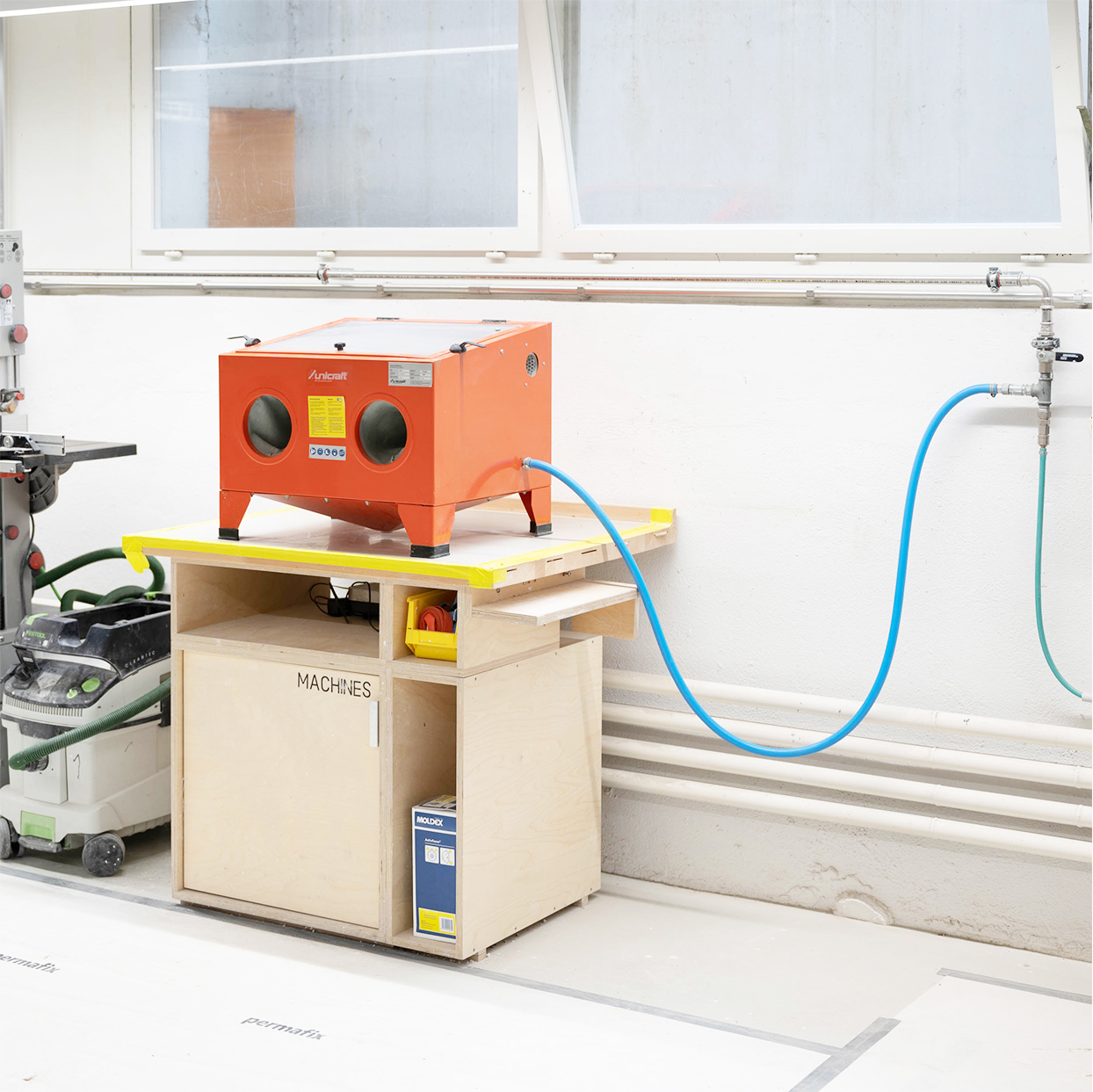
Sandblaster

Sandblaster

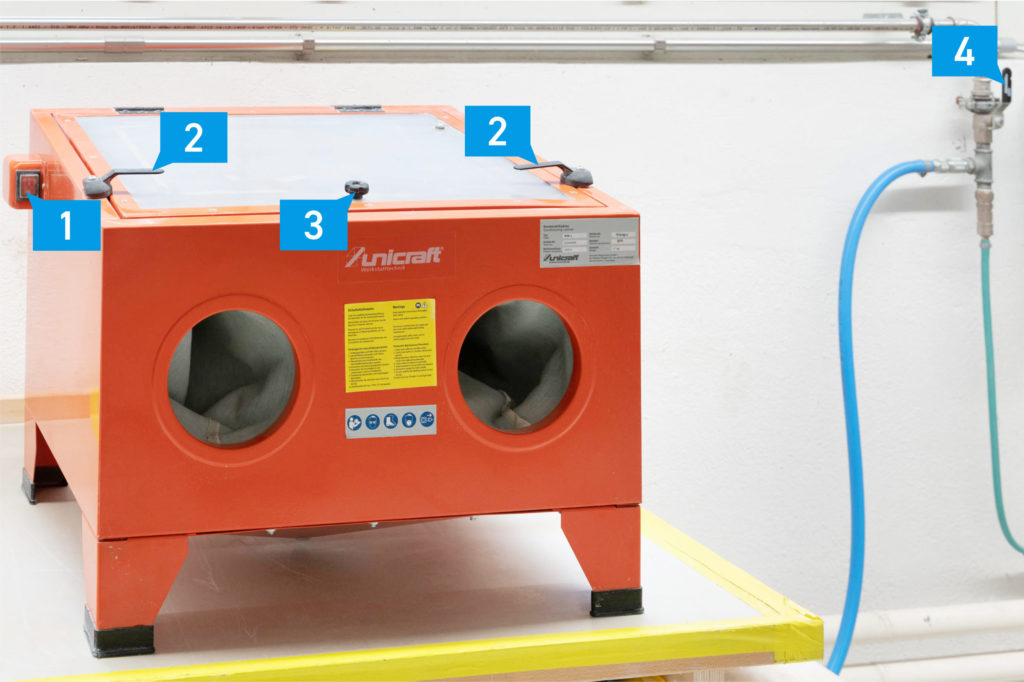
The Unicraft SSK 1 is a compact sandblasting cabinet designed for cleaning, deburring, and surface treatment of small workpieces.

Allowed material:

  • Plaster
  • Concrete
  • Glass
  • Porcelain
  • Metall

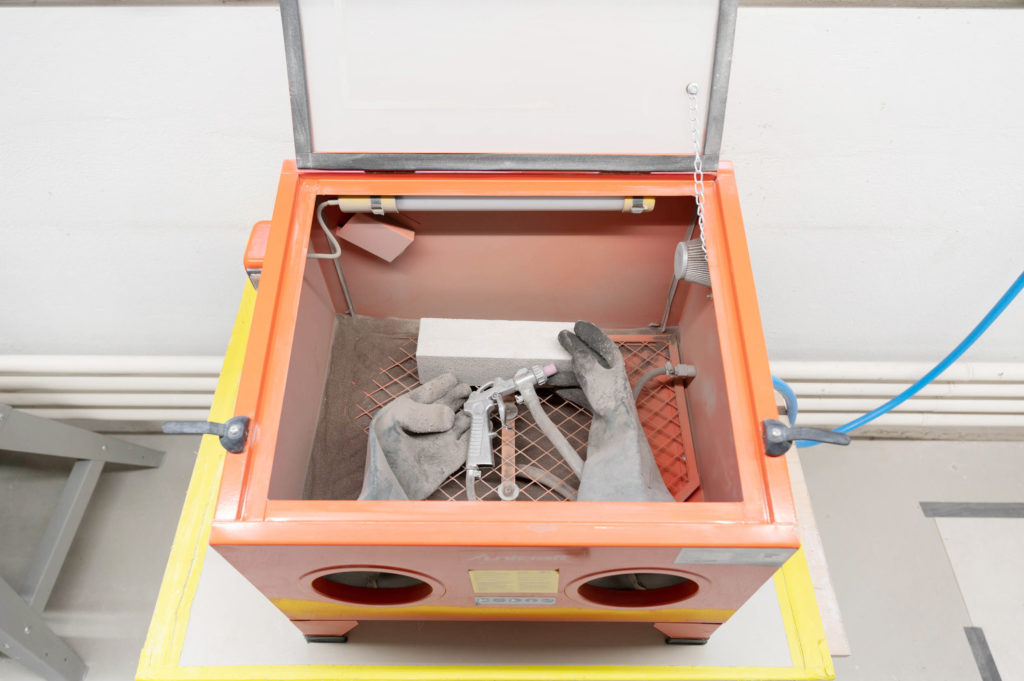
Sandblaster Overview

  1. Power switch for light
  2. Closure of the lid
  3. Open Lid
  4. Lever for compressed air (opened position)

Inside:
Gloves and pistol

Before you start 

  • Check that the vacuum cleaner is connected to the filter system
  • Check that the gloves are airtight when connected to the machine
  • Wear a dust mask, which is available free of charge in the workshop.
 

Machine Handling

  1. Turn on the vacuum cleaner
  2. Open the lever for compressed air (like it’s shown in the overview picture)
  3. Put the piece into the machine and close it
  4. Lid must be well closed before sandblasting
  5. Put your hands into the gloves and start sandblasting using the pistol
  6. Blast perpendicular to the object
  7. Close the compressed air line after you have finished (turn it 90 degree)
  8. Wait a minute to open lid and remove piece
  9. If there is too much dust inside the box and you cannot see anything, please contact the workshop manager

Add Your Heading Text Here

Isohypsen Plugin For Rhino3d

Isohypsen Plug For Rhino3d

Table of Contents

The Plugin

What the plugin does

The plugin is designed to assist with data preparation for “classical” landscape models. Thereby creating a specific workflow to minimize repetitive tasks. 

What the plugin doesn’t do

The plugin doesn’t take any design decisions for you, nor does it help you find the proper level of abstraction for your model. Keep in mind that cadastre data is especially troublesome and needs to be redrawn because of it’s poor quality. As of today, there is no magical “improve” bad drawings button, that takes away the redrawing step that will safe you a ton and frustration in the digital workshop.

The Rhino Commands

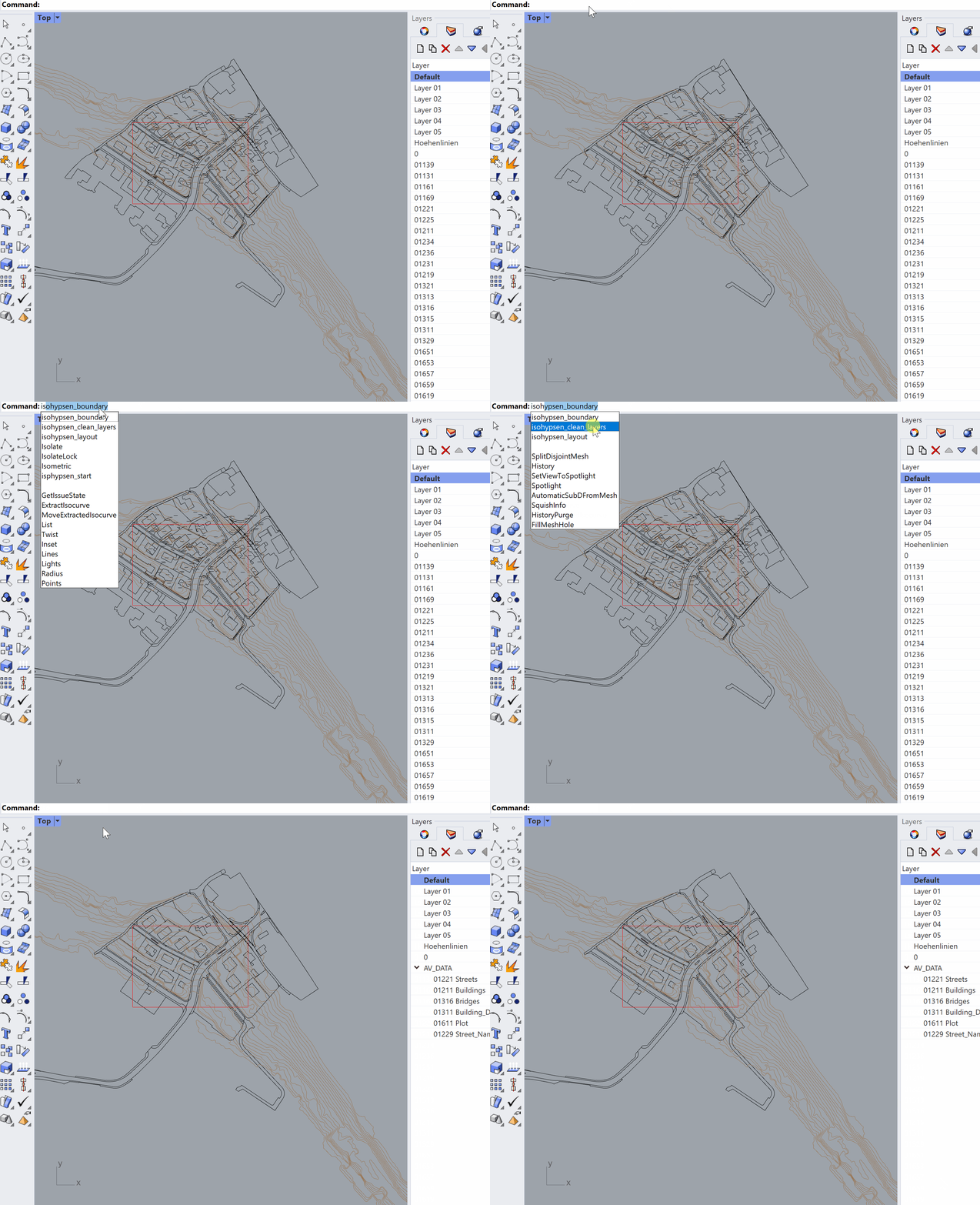
isohypsen_layers

Cleans the layer structure of the GEOBAU Format for better orientation.

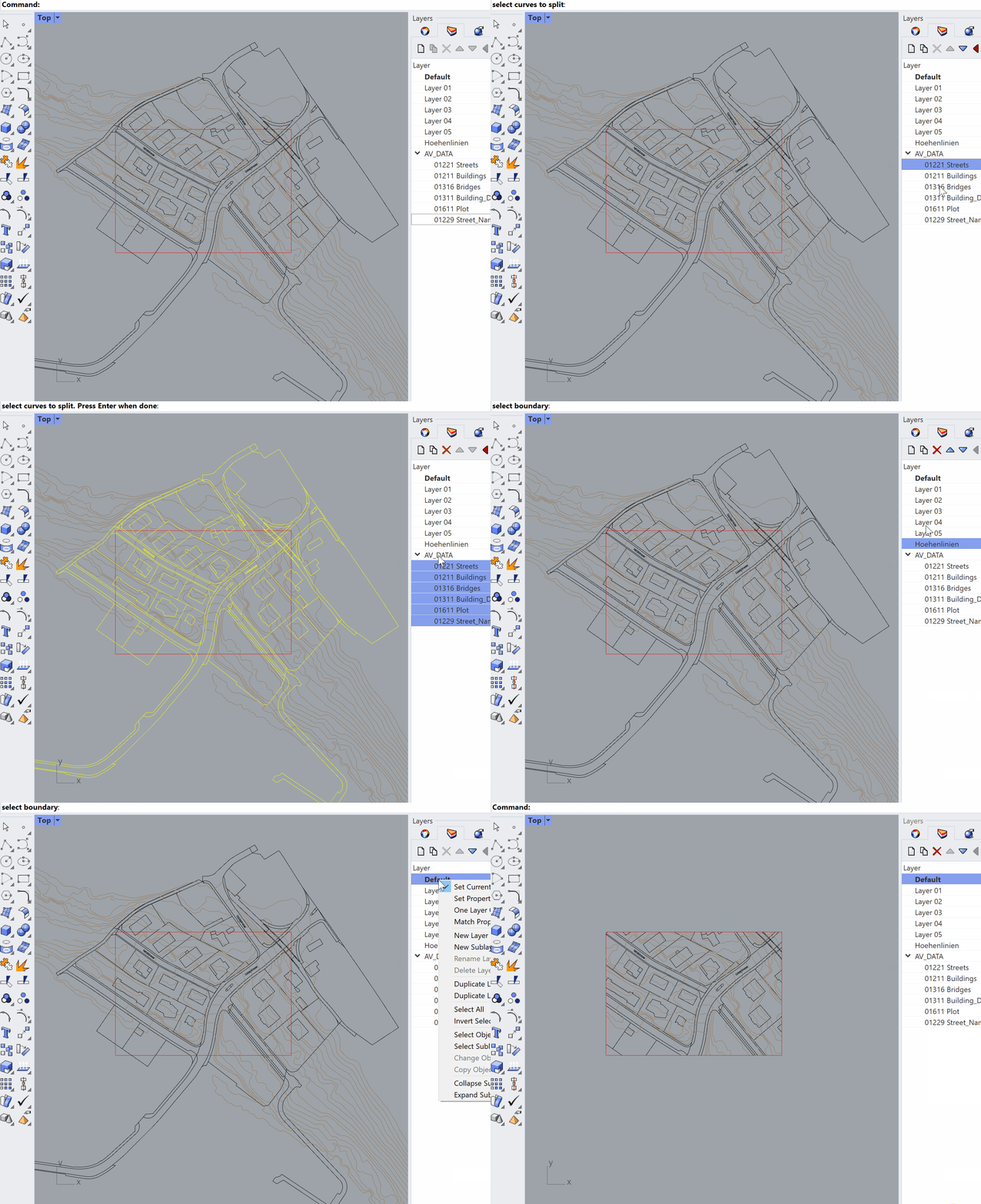
isohypsen_boundary

Trims all selected lines to a given boundary/model perimeter. 

isohypsen_init

Creates the topographic model by projecting surfaces to the contour lines. At the same time the contour lines get smoothed and a point reduction happens that improve the data for digital fabrication.

isohypsen_layout

Creates a 2D-layout with labels ready to be exported for laser cutting, the cutting plotter or milling. Each contour layer has trimmed cadastre data to minimize production time and a guide line of the top layer that can be used for assembly.

Workflow

Step by Step 

  1. Make sure to download both .dxf files of your map section. Click here to find out more. 
  2. Open a new rhino file > “Small objects in meters”
  3. Import both .dxf files. Set model units and layout units to Meters.
  4. Type “SelAll” in the command bar and zoom to your selection by klicking Zoom > “Zoom Selected” in top view to see your drawings.
  5. Type “Isohypsen_layers” in the command bar and confirm with ENTER to clean layers. 
  6. Type the following in the command bar to remove all blocks. Confirm Every Step with ENTER:
    • SelBlockInstance
    • Explode
    • Join
  7. Type “SelDup” in the command bar and delete the duplicates.
  8. Use the rectangle tool to draw the boundary.
  9. Type “Isohypsen_boundary” in the command bar and follow the instructions to trim the selected boundary area. There are two steps to complete the task:
    • select curves to split: Type “All” in the command bar and confirm with ENTER.
    • select boundary: select your previously drawn boundary.
  10. Select all Drawings, type “Move” in the command bar and follow the instructions to move your drawings to the 0, 0, 0 coordinates.
  11. The imported cadastre_data must be redrawn now to optimize laser cutting. Use Polylines and NURBS curves for better results.
  12. Use Units to  reset the units from meter to millimeter and check that your scaling is right. If you need to adjust your scaling use Distance to check the actual length and Scale to set the new scale
  13. Once done, move the terrain curves below the cadastre drawing sets.
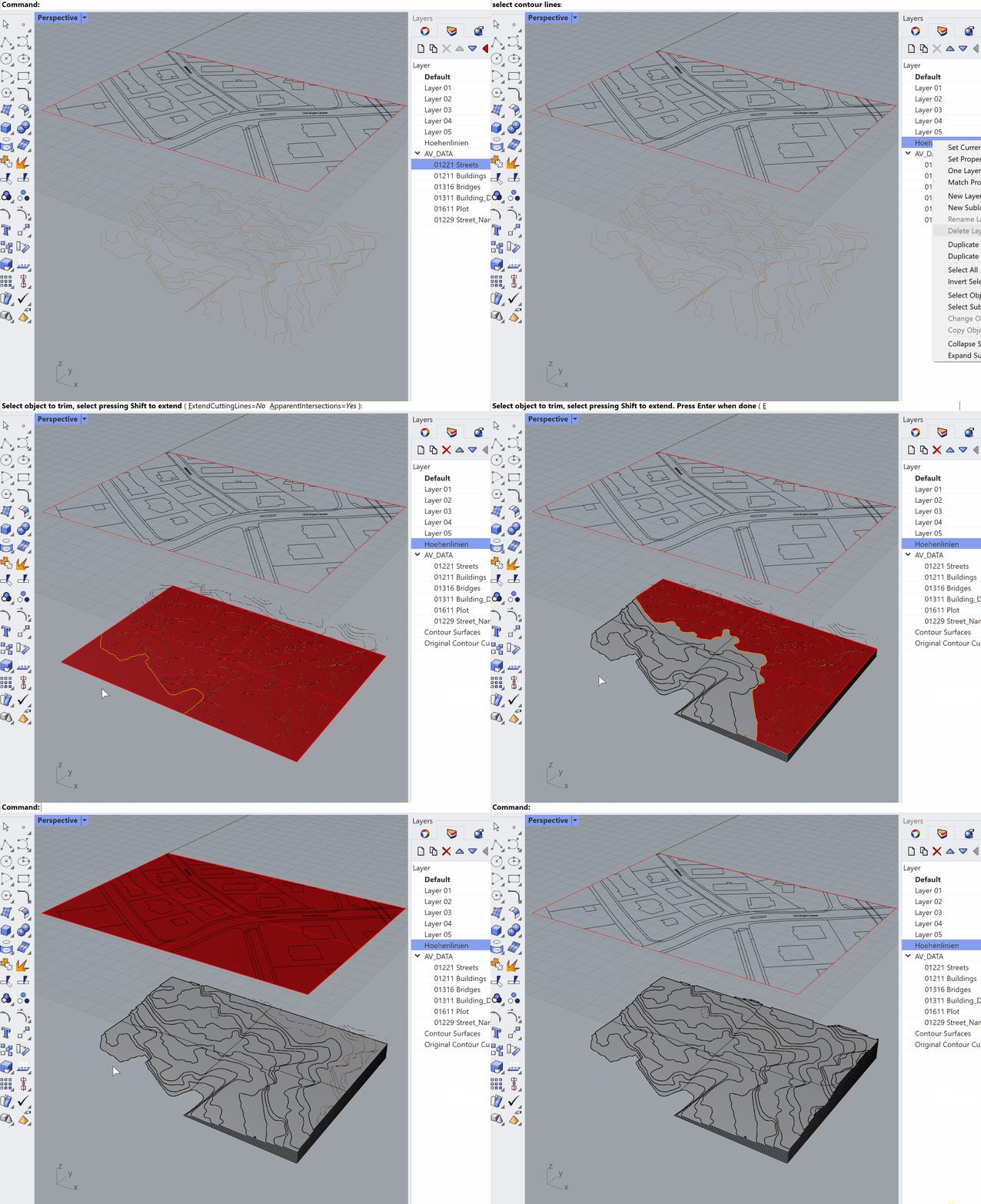
  14. Generate the contour surfaces and simplify the contour lines by typing “Isohypsen_init” in the command bar and following the instructions. There are four steps to complete the task:
    • select contour lines. Press enter when done: “Höhelinien” > “Select Objects”, press ENTER
    • select boundary: klick the previously drawn boundary 
    • reduce point count to 0.5: press ENTER
    • select objects to trim, select pressing Shift to extend: follow the video below from 04.47 if unclear.
  15. You can now cut out the outline of your buildings out of the iso surface. Therefore type „Trim“ in to the comman bar. There are two steps to complete the task:
    • select cutting objects: select the outline of the building you want cut out of the iso surfaces. Press ENTER to confirm your selection.
    • select object to trim, select pressing shift to extend: select the outlines of the surfaces you want to cut. Press ENTER to confirm.
  16. Type „isohypsen_layout“ in the command bar and follow the given instructions to generate the cutting data.
  17. Create a new layer and draw a rectangle with the size of your stock to arrange/nest the cutting data
  18. Use Print to export a vector PDF for the laser cutter or save the rhino-file to import it into the zünd template

Installation And Download

The plugin is designed to work with Rhino7 on Windows. It can be installed on a Mac with a bit of extra work (see below).
 
Win
To install the plugin on your computer simply download isohypsen.rhi to your computer and double-click the installer while Rhino3d is closed. Open Rhino3d after the installation is complete and the commands of the plugin should be available when you type “isohypsen_…” in the command line. 
 
Mac
Please download the files for the plugin from our github repository and follow the official installation instructions on the rhino developer site: https://developer.rhino3d.com/guides/rhinopython/creating-rhino-commands-using-python/#mac
 

Note: Sometimes, using this system, Rhino requires that Python be loaded before it can see the new command for the first time in a session – running EditPythonScript, or any other python script should allow the command to work.

Github

If you want to contribute to our plugin with your own ideas or you know how to improve the code, feel free to help us maintain and improve the plugin.

Acknowledgement

This is a shout out to all the kind help that we received while investigating this topic. 

The basic idea for the workflow comes from an explanation of a similar plugin that is being used in the education of architectural model builders in Switzerland and was kindly explained to us by Noa Hirschi from https://modellag.ch/

Further explanations on the  aesthetics and design considerations as well as much needed insight into the different data sets were provided to us by Pascal Gnädinger from https://diemodellbauer.ch/

Federico Bertagna from the Chair of Structural Design at ETH Zurich was kind enough to develop the first a fist draft of the plugin with Grasshopper

Plaster Bandsaw

Plaster Bandsaw

General Information

1 machine available

For Plaster only!

In order to use this machine you must have succesfully completed the following courses:

  • general safety introduction course
  • introduction to the plaster workshop
  • Do not wear gloves 
  • Tie long hair back
  • Wear proper workshop clothes
  • Work piece must rest on the table at all times
  • Use only allowed material: plaster
Please check our workshop rules for more detailed safety instructions.

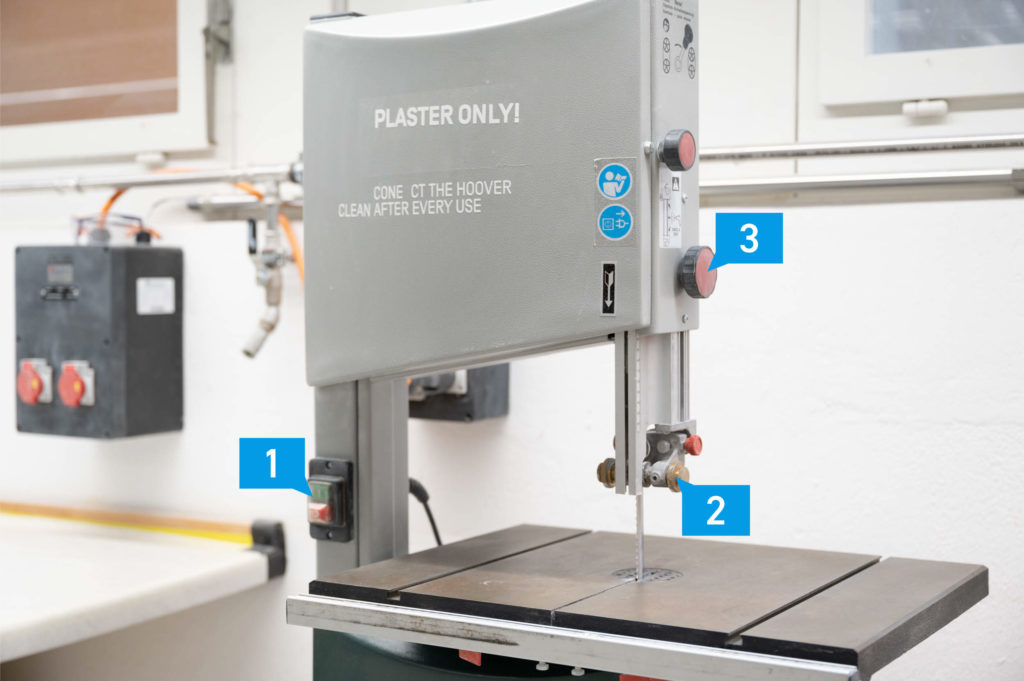
Bandsaw for Plaster Overview

  1. Power switch
  2. Guide assembly
  3. Wheel for adjusting guide hight

Things of Importance

  • For cutting dry plaster it’s recommended to use a dust mask.
  • Make sure the vacuum cleaner is plugged in and turns on
  • Never work from behind the bandsaw, pulling the workpiece
  • Use only light pressure to avoid blade deflection
  • Turn off the machine before pulling back the workpiece
  • Always support your workpiece on the machine table
  • Always use both hands to guide your workpiece while cutting it
  • Avoid cutting narrow curves
  • Clean the machine every time after use.

GIS Data For Landscape Models​

GIS Data For Landscape Models

Table of Contents

GIS Browser, Canton Of Zurich

www.maps.zh.ch

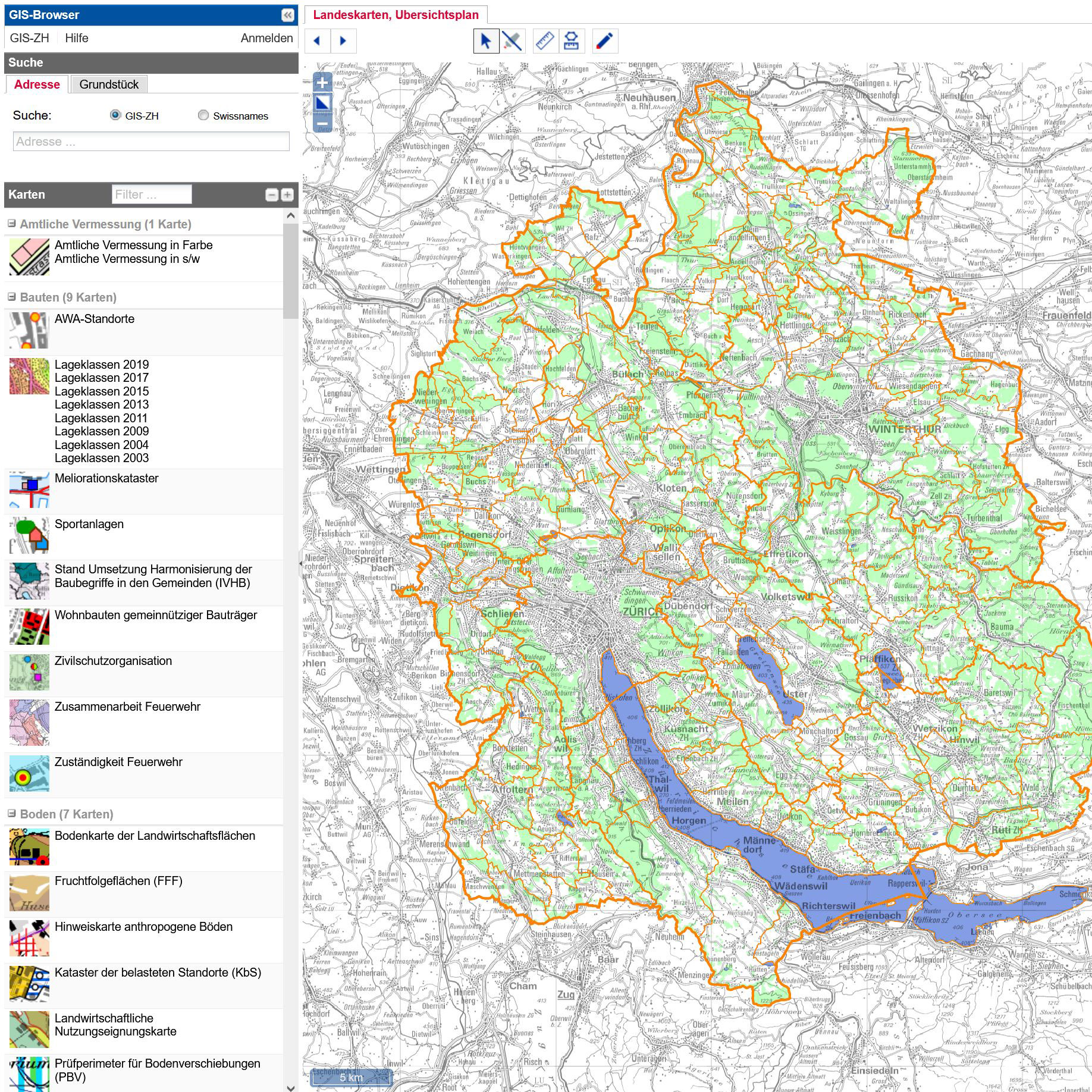
The GIS browser is an important tool for getting information about a specific site. The data that you can get, ranges from simple contour lines to noise pollution data. It is definitely worth spending some time to investigate the different maps and options of the tool, in order to find the ones that might be of use to your project.

For landscape and terrain models we focus on two sets of data that are of special interest to us. The first one contains the terrain information, contour lines, and is called: Isohypsen DTM – 2017/2018 and the second one contains all the cadastre data (e.g. streets, houses, bridges and so on…) and in the case of the Canton of Zurich is called: Amtliche Vermessung – Datenmodell Kanton Zürich (DM01AVZH24). Both data sets can be downloaded as .dxf-files for further processing in any CAD software. 

Note

The data that we get from the website is a great starting point, but is unfortunately far from being useful for anything else than printing. If you want to use our laser cutters or cutting plotters to make a landscape model, you will soon discover that both .dxf-files are full of problematic line definitions. In order to minimize this source of great frustration we created our own Isohypsen-plugin for Rhino3D that helps you with creating cleaner data for your models.

See this post for more information on the plugin and file preparation!

Geobau (DM01AVZH24) Layer Definitions

It is worth to studying the layer definitions of the cadastre data in order to get the layers that are useful to your project and discard unnecessary geometry that makes your files heavy and hard to handle. Information about the layers and the exact content can be found here: GEOBAU2 Format

GIS Browser Step By Step

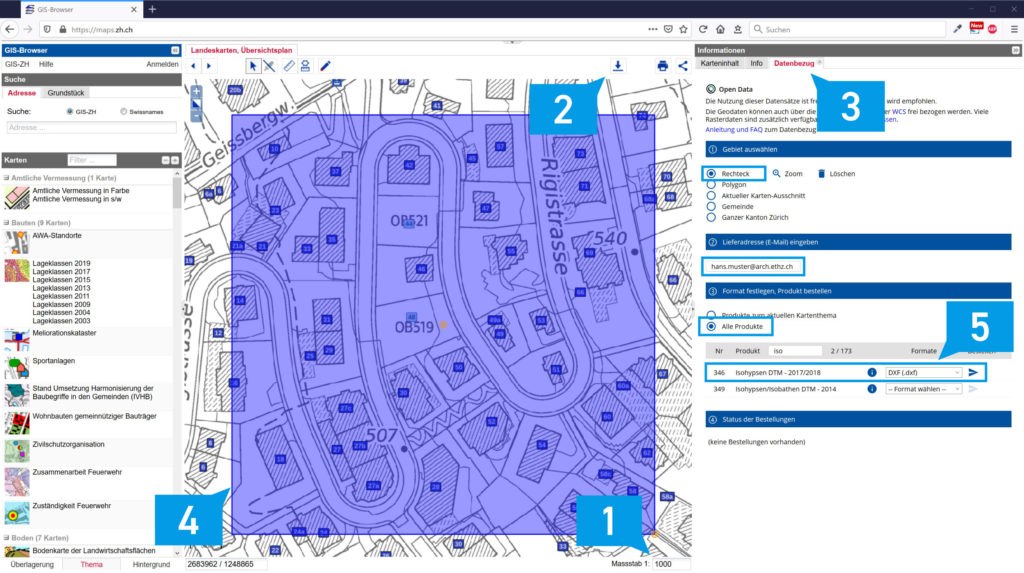
  1. Use zoom and pan to get close to your desired plot
  2. Select the appropriate scale (1) for your model (e.g. 1:1000, 1:500)
  3. Press the download button (2)
  4. Follow the instructions in the “Datenbezug”-tab (3) to select your perimeter (4), specify your email address and to choose the download options
  5. Under “Format festlegen, Produkt bestellen” select “Alle Produkte”
  6. Search for Product “Isohypsen DTM – 2017/2018” and download as .dxf-file (5)
  7. Search for Product “Amtliche Vermessung – Datenmodell Kanton Zürich (DM01AVZH24)” and download as .dxf file (5)
 
If you are planning to build a Landsacpe model, proceed by klicking here to use the Isohypsen Plugin For Rhino3d.
 
Need more help? Check out the official maps.zh.ch help for detailed instructions and further options: https://maps.zh.ch/help/index.htm or https://www.zh.ch/de/planen-bauen/geoinformation/geodaten/geodatenshop/kostenlose-geodaten-beziehen.html

Further Data Portals

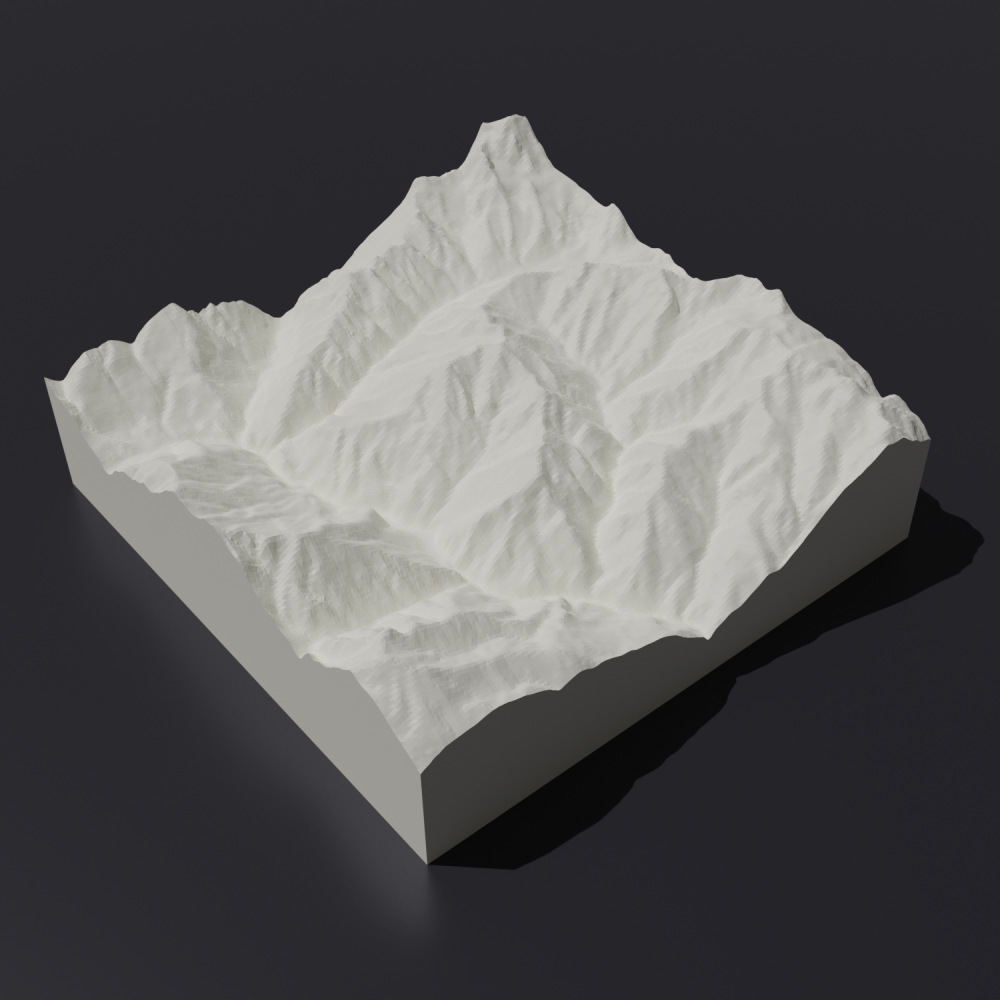
Terrain2STL

terrain2stl

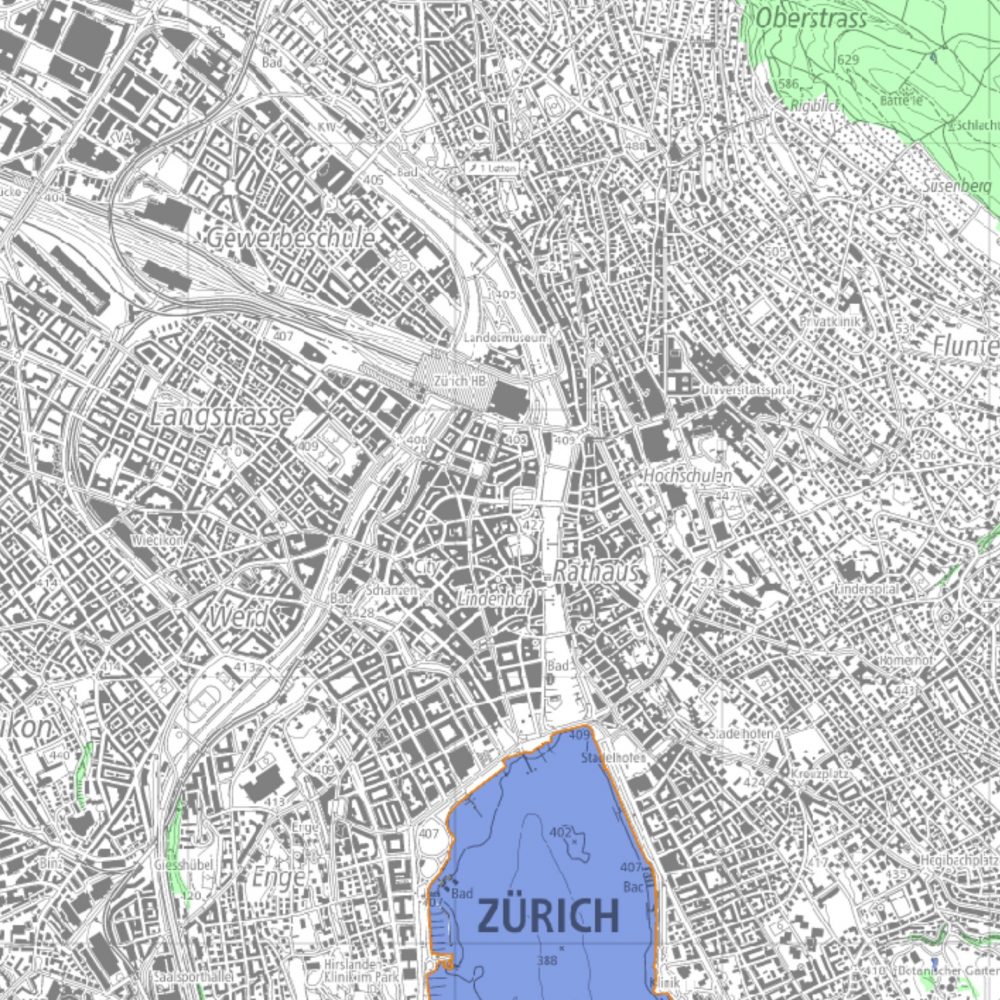
GIS Browser

Screenshot 2021-06-29 163826

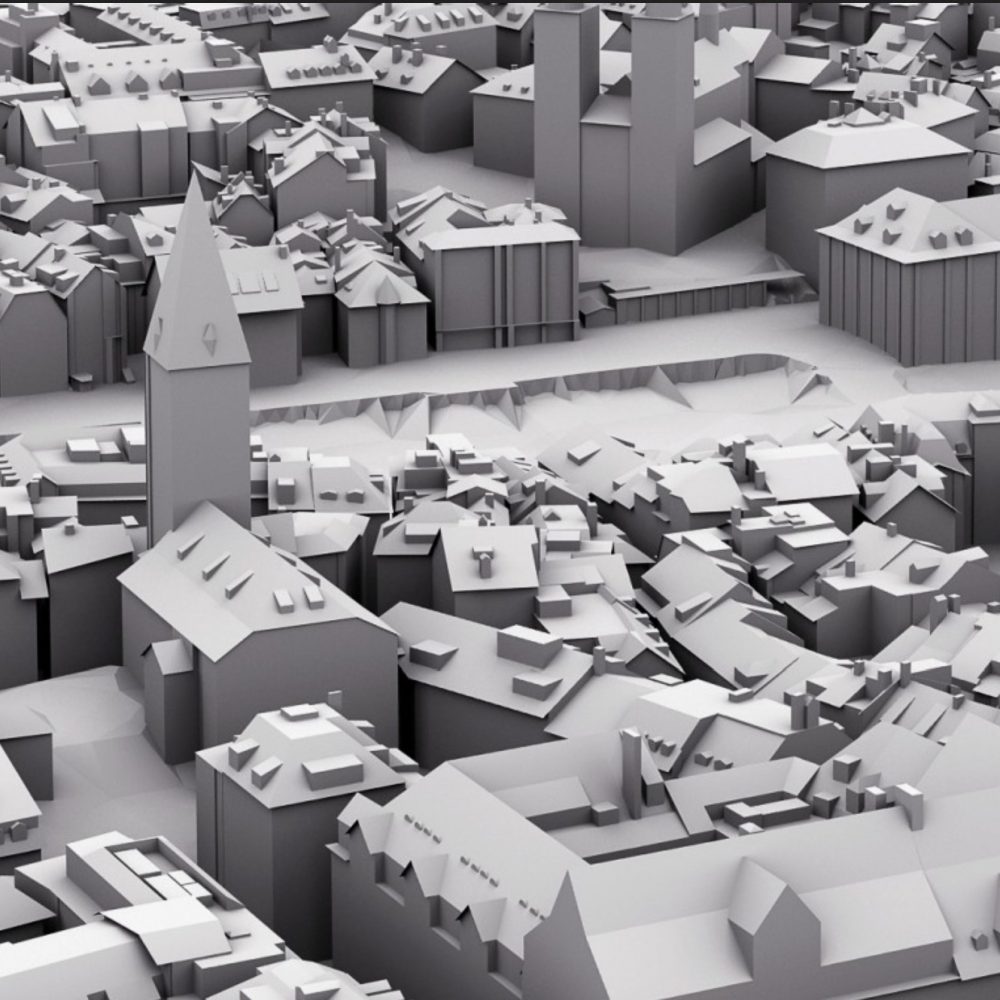
Stadtmodell Zürich

Screenshot 2021-06-29 162640

swissSurface3D

SwissSurface3D

OpenStreetMap

Openstreetmap

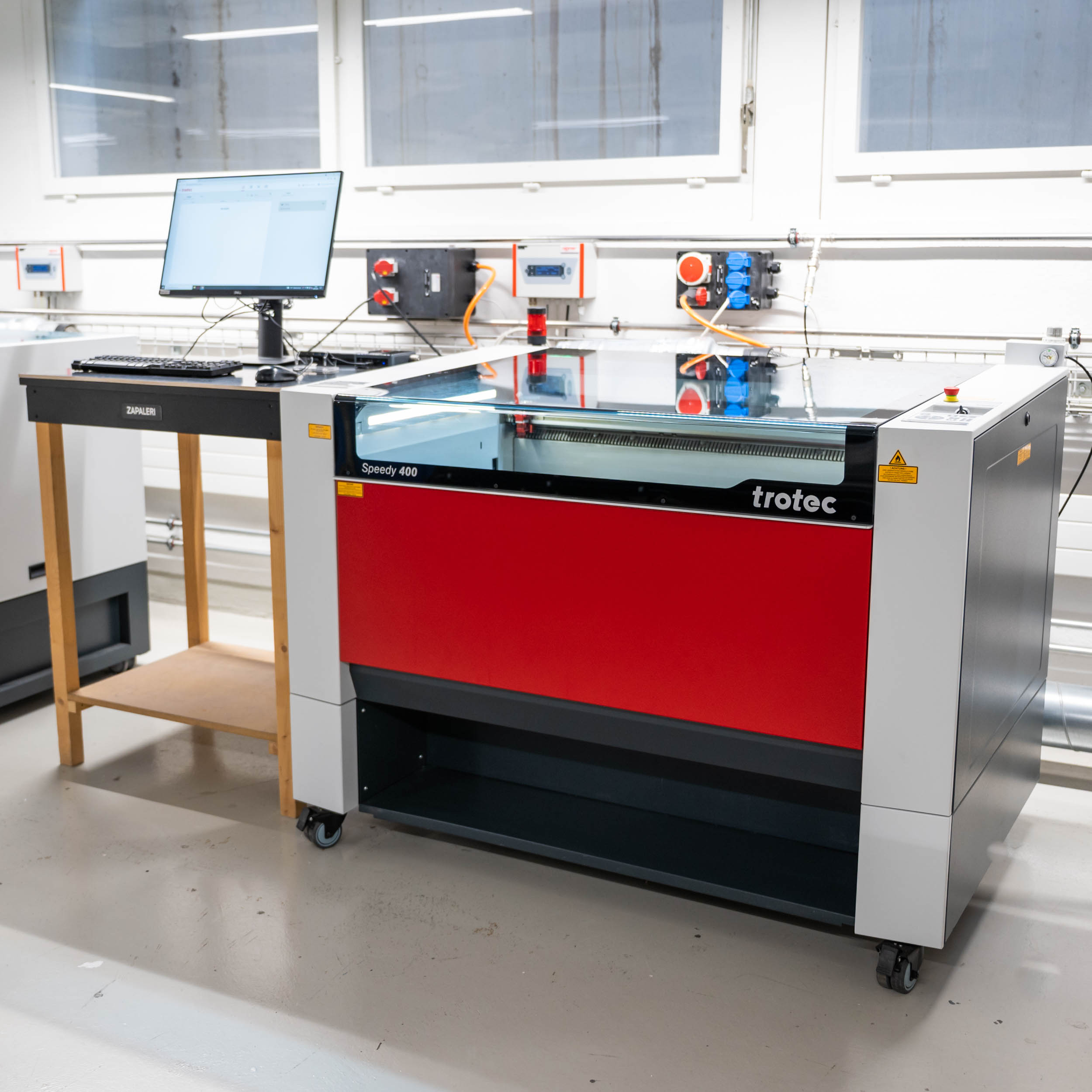
Trotec Laser Cutter

Trotec Laser Cutter

General Information

The machine user must stay with the machine for the duration of the cutting time. 

If there are flames above the sheet material, pause the job and notify a staff member.

A small amount of smoke in the machine cabinet if normal. However is the smoke seems to build up inside the cabinet pause the machine and notify a staff member.

  1. Turn on the laser cutter and computer
  2. Unlock the machine with your ETH card
  3. Place the material onto the laser bed
  4. Pull down the protective cover and focus
  5. Import your PDF into Ruby
  6. Choose placement and material
  7. Cut
  8. Turn off the laser cutter and the computer after use

Cost: 20.- / h  (starts from login time!)
Area: 1000mm x 600mm
File: PDF, RGB colors, vector-based, no groups

Colors:

  • Cut = Red (RGB 255,0,0)
  • Engraved Line = Black (RGB 0,0,0) (Hairline / 0.01pt / 0.01mm thick)
  • Engraved Area = Blue (RGB 0,0,255)
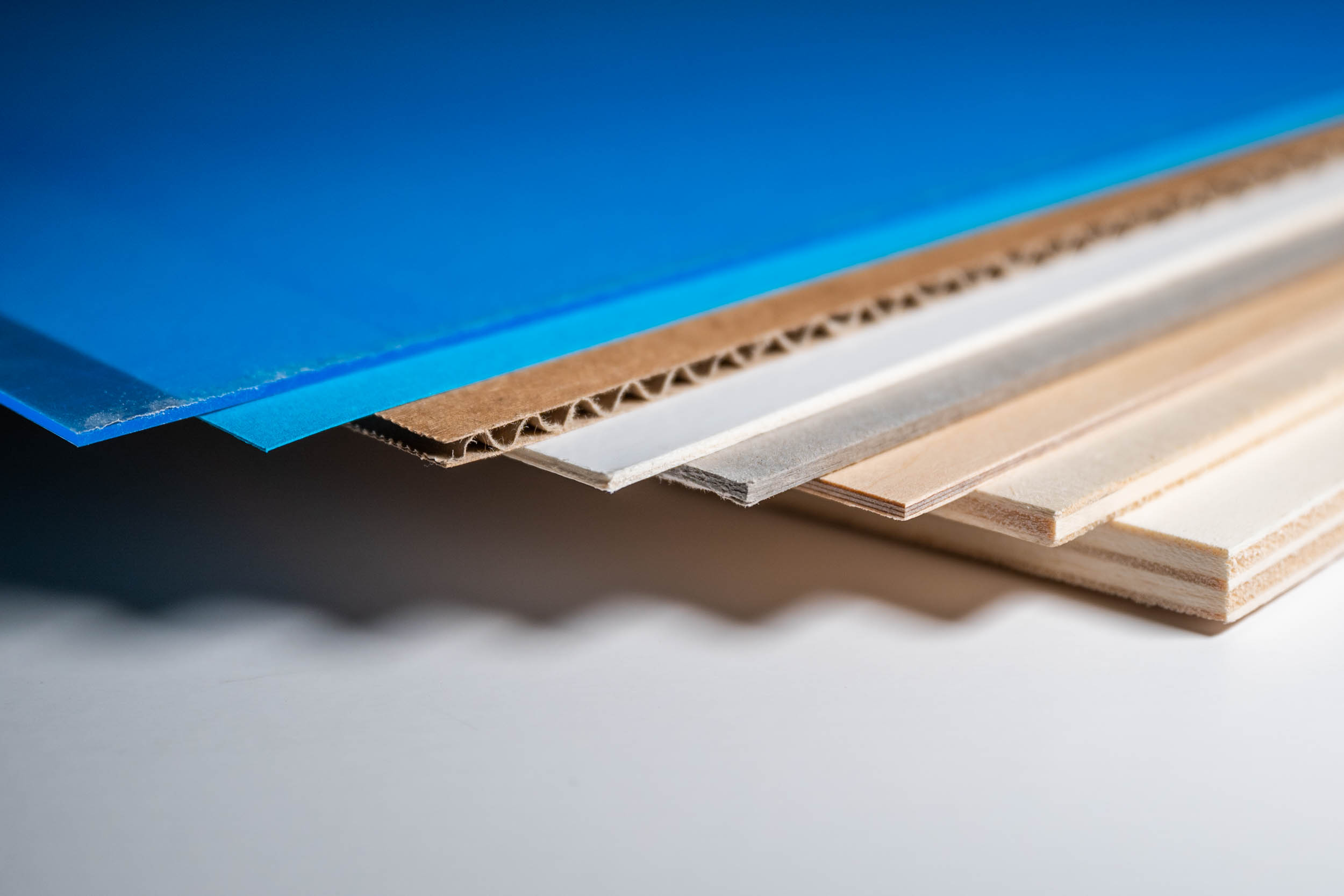
  • Acrylic Glass (Plexiglas, PMMA) (0.5mm to 10mm)
  • Paper (up to 300g)
  • Corrugated Cardboard (0.5mm to 4mm)
  • Cardboard (0.5mm to 4mm)
  • Air-Ply (0.5mm to 2mm)
  • Poplar Plywood (3mm to 10mm)

How to prepare your file here

Laser 2-6 HIL

  1. Unlock the machine with your ETH card at the entrance door.
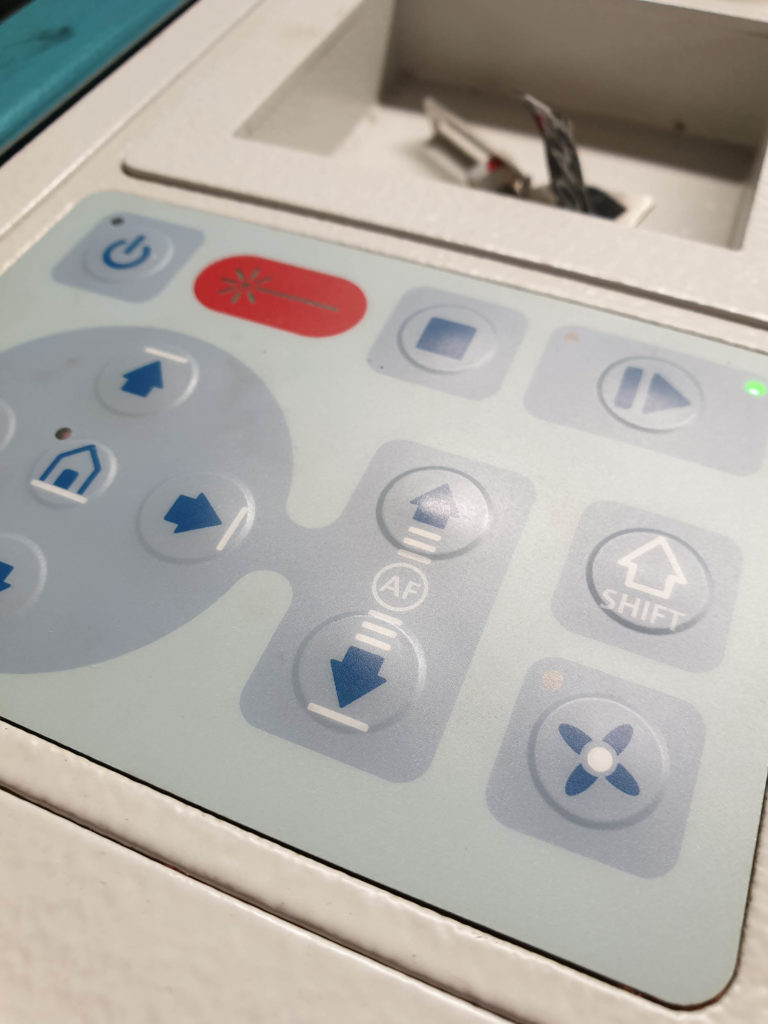
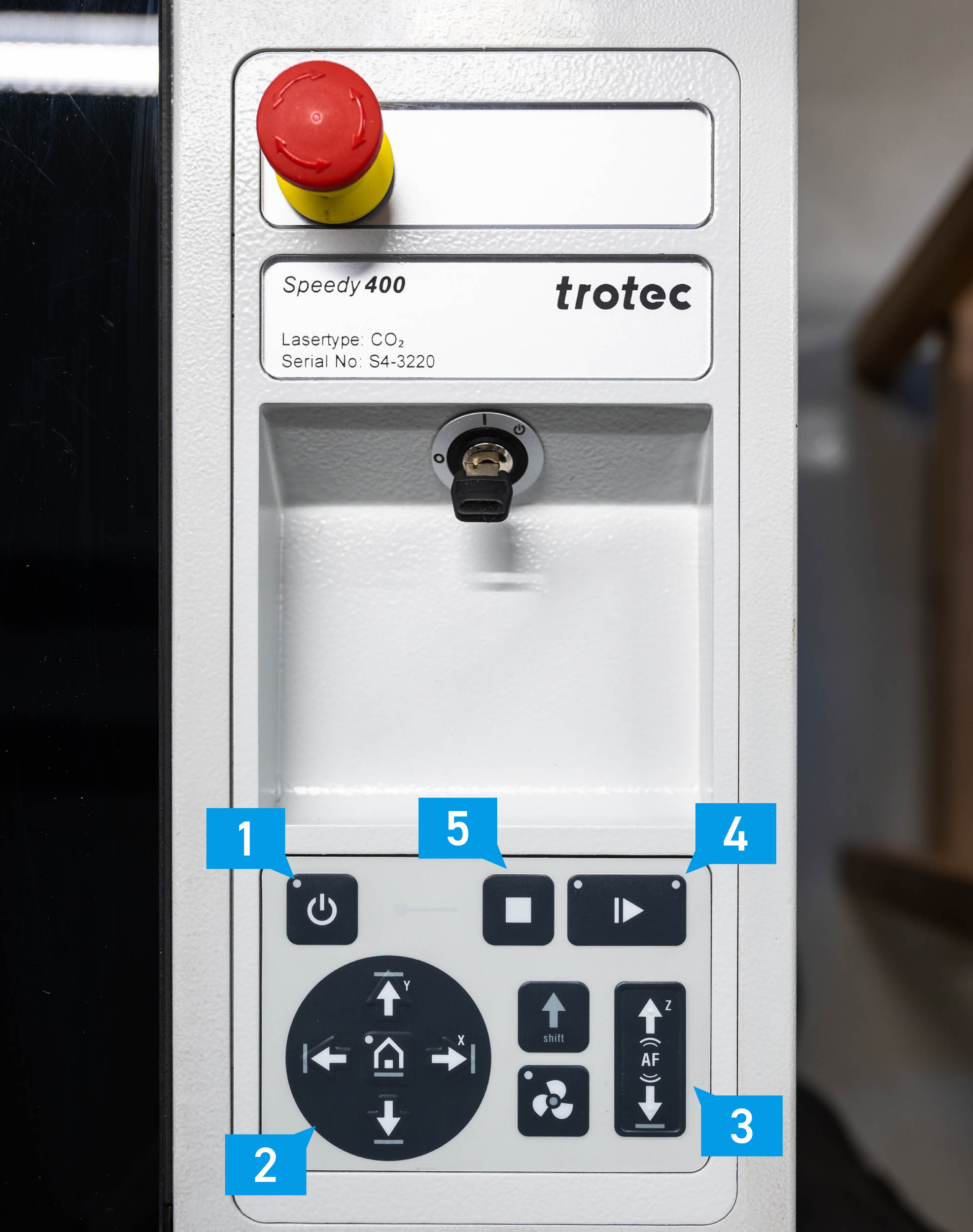
  2. Turn on the laser cutter by pressing the standby button (1) 
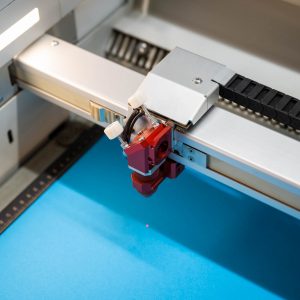
  3. Place the material on the upper left corner of the laser bed and pull down the cover.
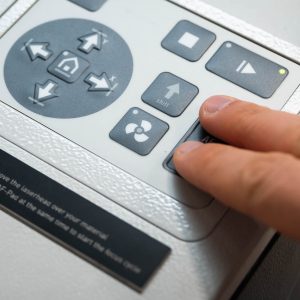
  4. Move the laser head over the material with the navigation keys. (2)
  5. Focus on to the material surface by pressing both AF-keys at the same time (3). For Laser 1, follow instructions below.
  6. If you want to start your file at a specific spot drive there manually with the navigation keys. (2)
  7. As soon the laser job started you can anytime pause the process with the “Pause/Play” key. (4)
  8. To cancel a job press the stop button (5)
Standbybutton-03

Turn on

DSC_2986

Place material in the top left corner

DSC_3033

Place laser head over material

DSC_2984

Focus

Laser 1 HIL and Lasers at ONA Workshop

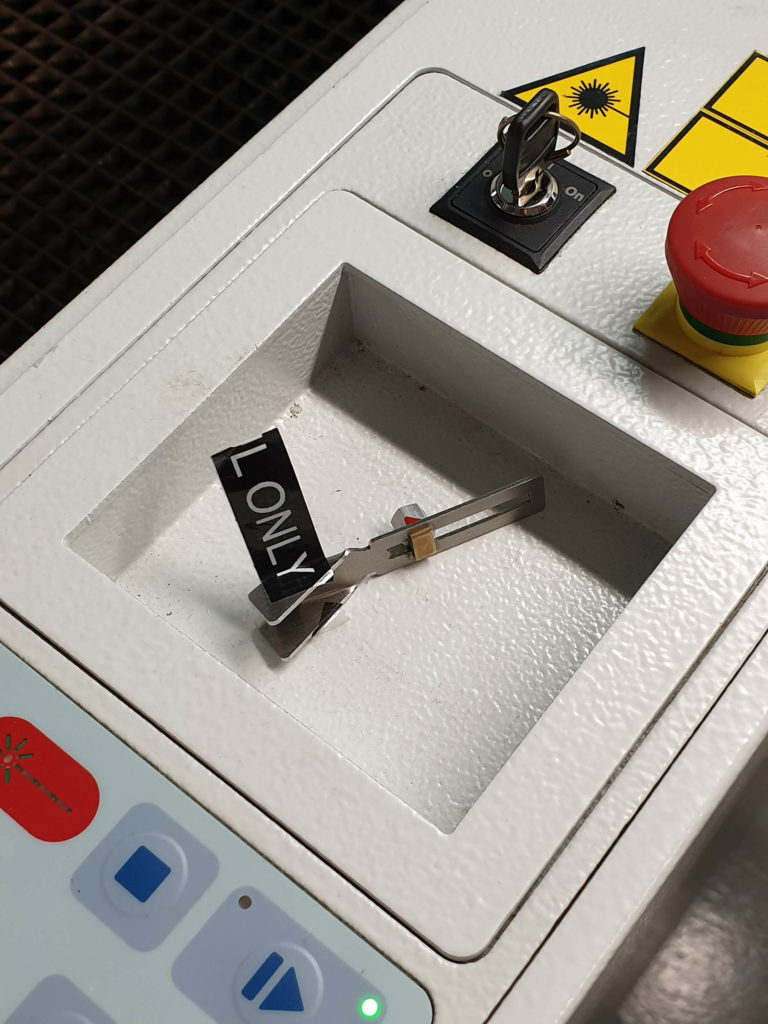
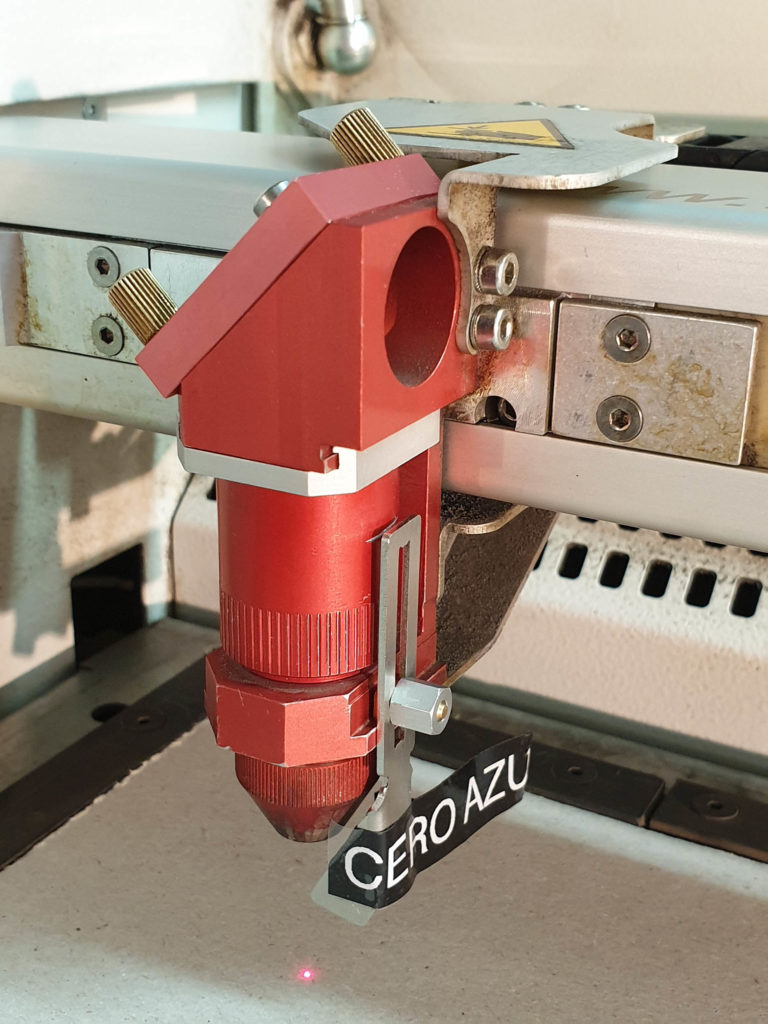
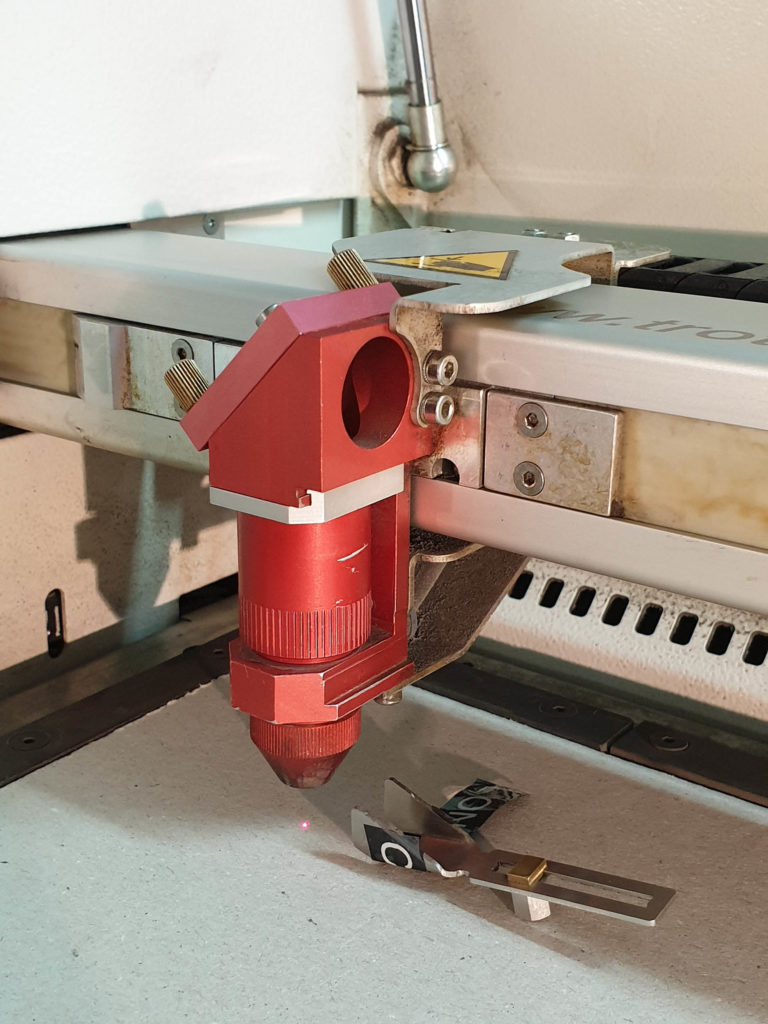
The Laser 1 and the Lasers at ONA workshop work basically the same as all the other laser cutters, only the laser focus must be differently.

  1. The machine will turn on as soon as you login
  2. Move the laser-head over the material.
  3. Mount the distance gauge.
  4. Raise the laser bed incrementally with the Z up key (3) until the distance gauge falls off.
  5. Store the distance gauge. The laser cutter is now in focus.

Distance gauge

Mount distance gauge

Z up key

Laser focused

Ruby (Laser Software)

  • Open the laser software “Ruby” on the desktop of the computer connected to the laser cutter.
  • Log in with the auto-filled credentials if necessary. 
  • If the message “Job Control isn’t running. Do you want to switch to Ruby?” appears, accept it with “Yes”.

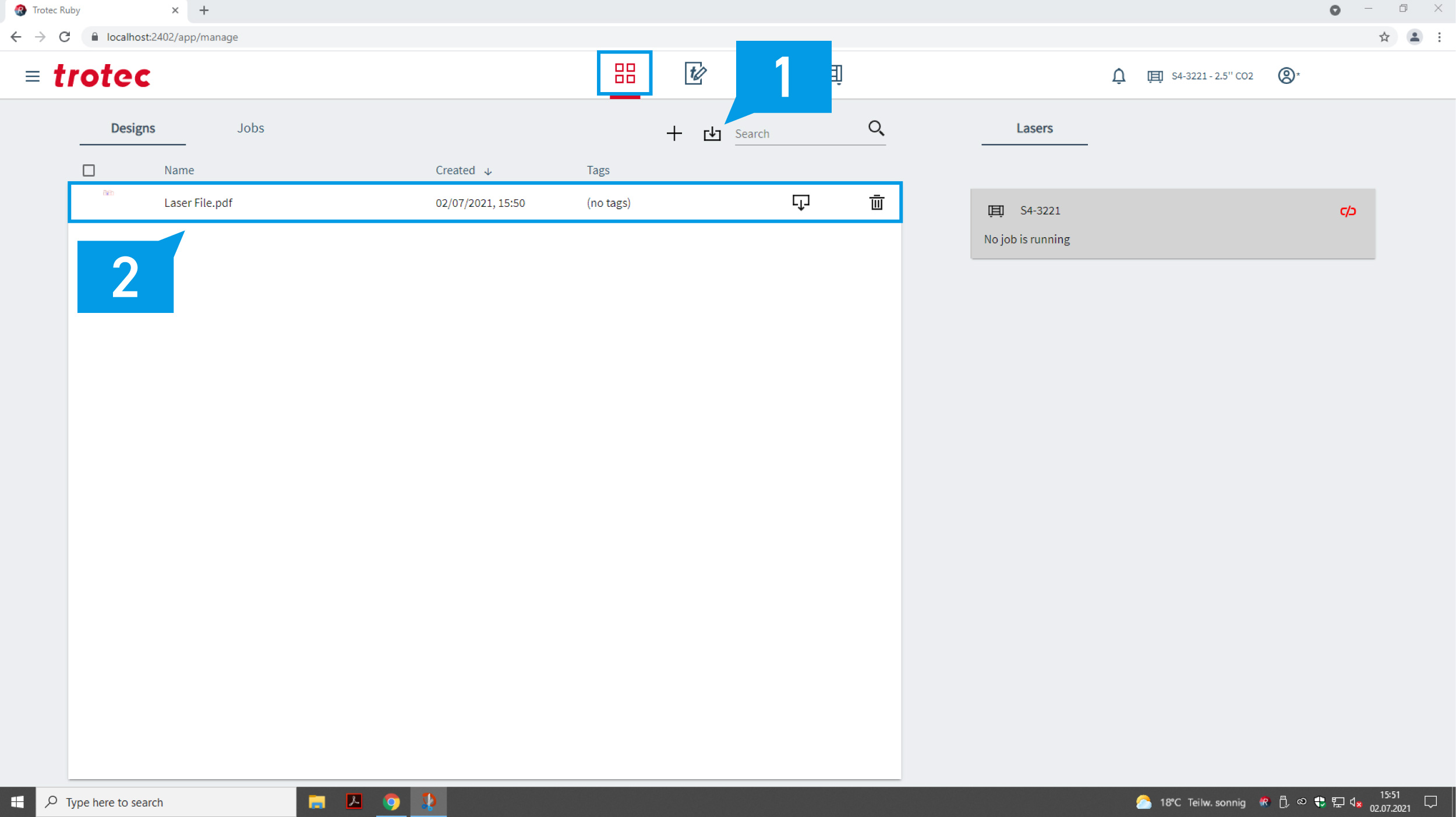
Tab 1: Import (1) your PDF. (2)

If “Error” appears check Troubleshoot.

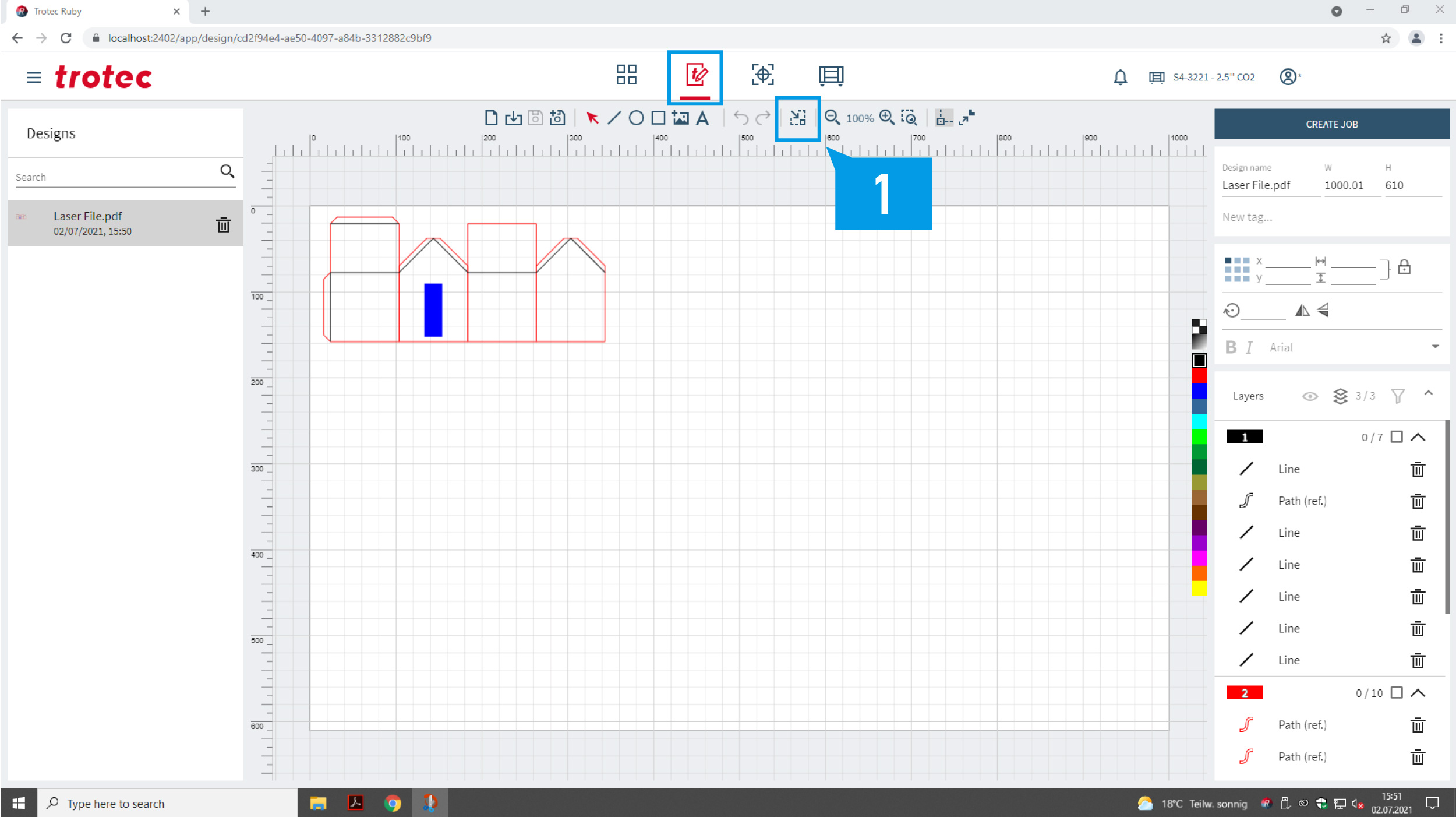
Tab 2: Delete the white area around your drawing (1) or skip with “create job”.

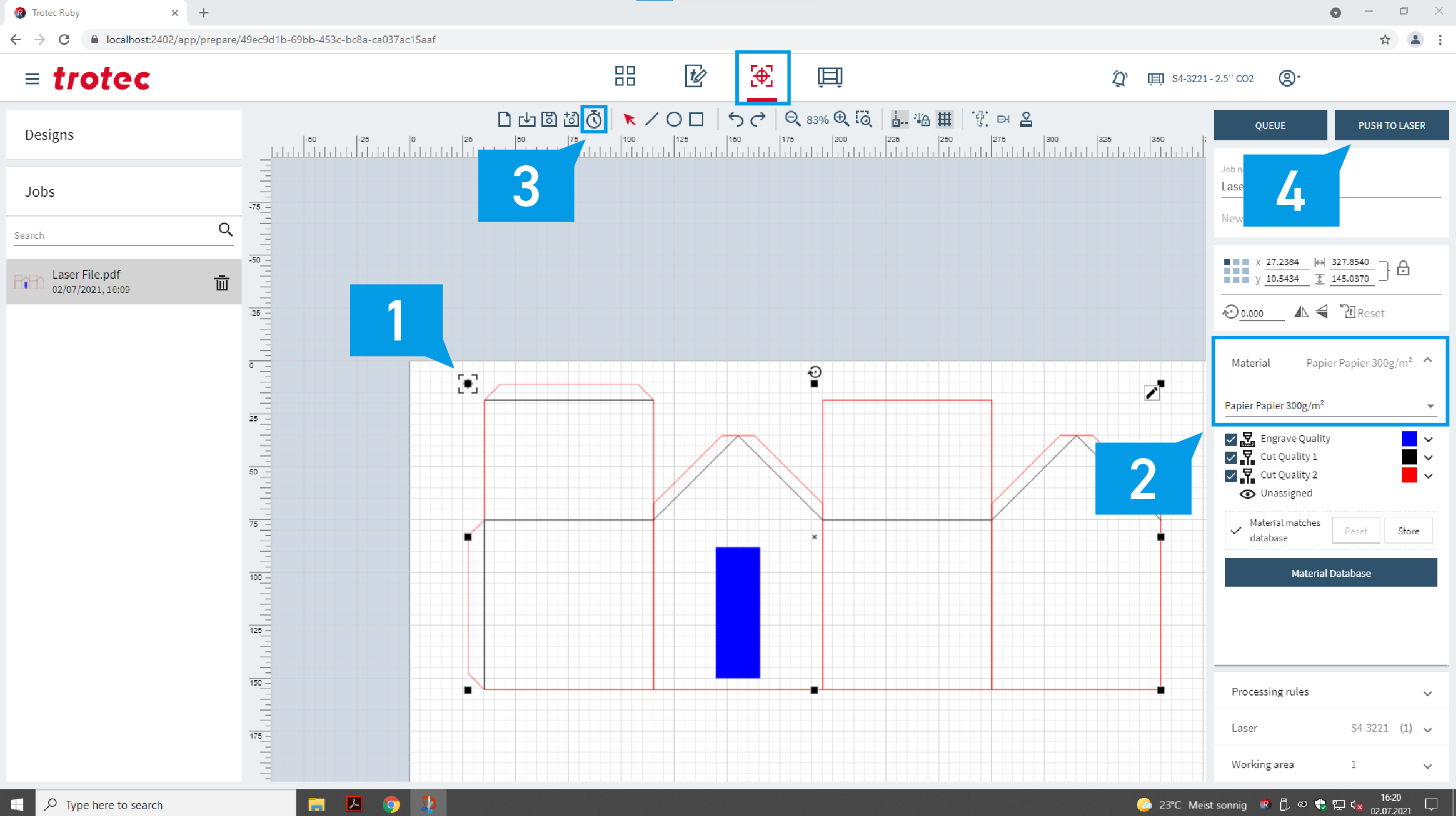
Tab 3: The position of the laser (1) should be visible and can be used to position your file. Choose the material from the drop down menu (2). Check how long the job will take with the clock button (3). Then continue with “push to laser”. (4)

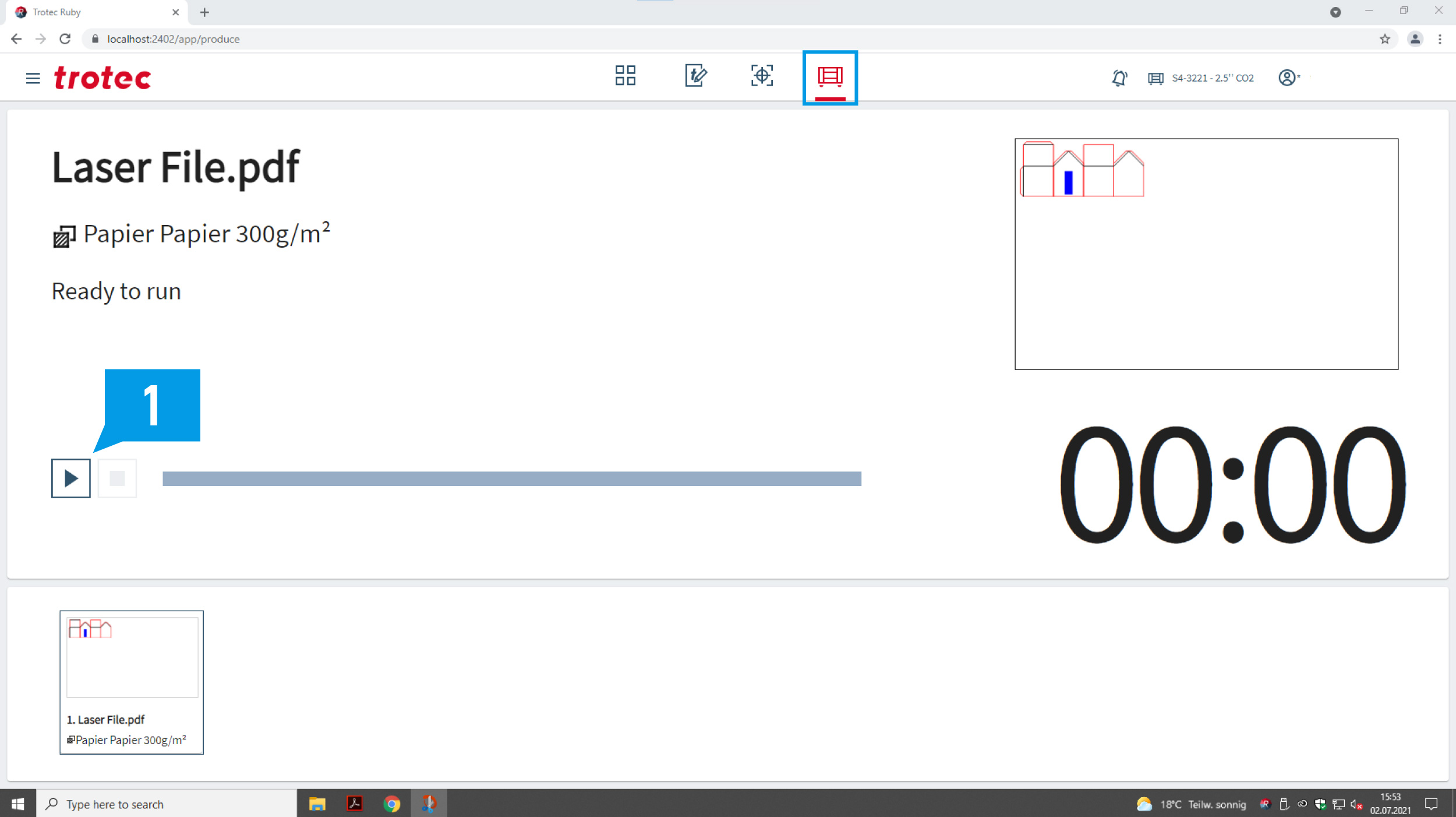
Tab 4: Check the material settings and start the laser process. (1)

Stay with the machine while the job is cutting to reduce the risk of a fire.

Please clean your workspace and turn off machine after you’ve finished cutting.

Troubleshoot

close ruby and reopen it

Check that there are

  • only necessary lines
  • Boarder 600mmx1000mm or less
  • no watermarks or hatches
  • only RGB colors
  • hairlines set to 0.01mm/0.01pt
 

To edit  (do this only if Ruby can’t load your file!) your file either

  • open it in Illustrator and switch to vector mode.
  • or use the Adobe Acrobat Reader and switch to edit mode.
 
How to fix hairlines in Adobe Acrobat Reader:
  1. Go to “Print Production”.
  2. Choose “Fix Hairlines”.
  3. Set the target value to 0.01mm/0.01pt.
  4. Save the file.
 

If that does not work, try printing your file as a PDF in Acrobat Reader: 

  1. Click “Print file” or press “Ctrl”+”P” to open Adobe Print.
  2. In the Printer drop-down menu select “Adobe PDF”.
  3. Press “Print”.
  4. Wait until “Save PDF file as” window opens. Once open, select where you want to save your PDF (e.g. “Desktop”).
  5. Save PDF.
  6. Try importing the PDF into Ruby.

Check if

  • the material settings are correct 
  • autofocus is set correctly
  • your material is flat – even 1-2mm can make an enormous difference.

If all checks have been made and the laser is still not cutting through, the settings must be updated. Please report this using the board attached to the entrance door of the digital workshop.

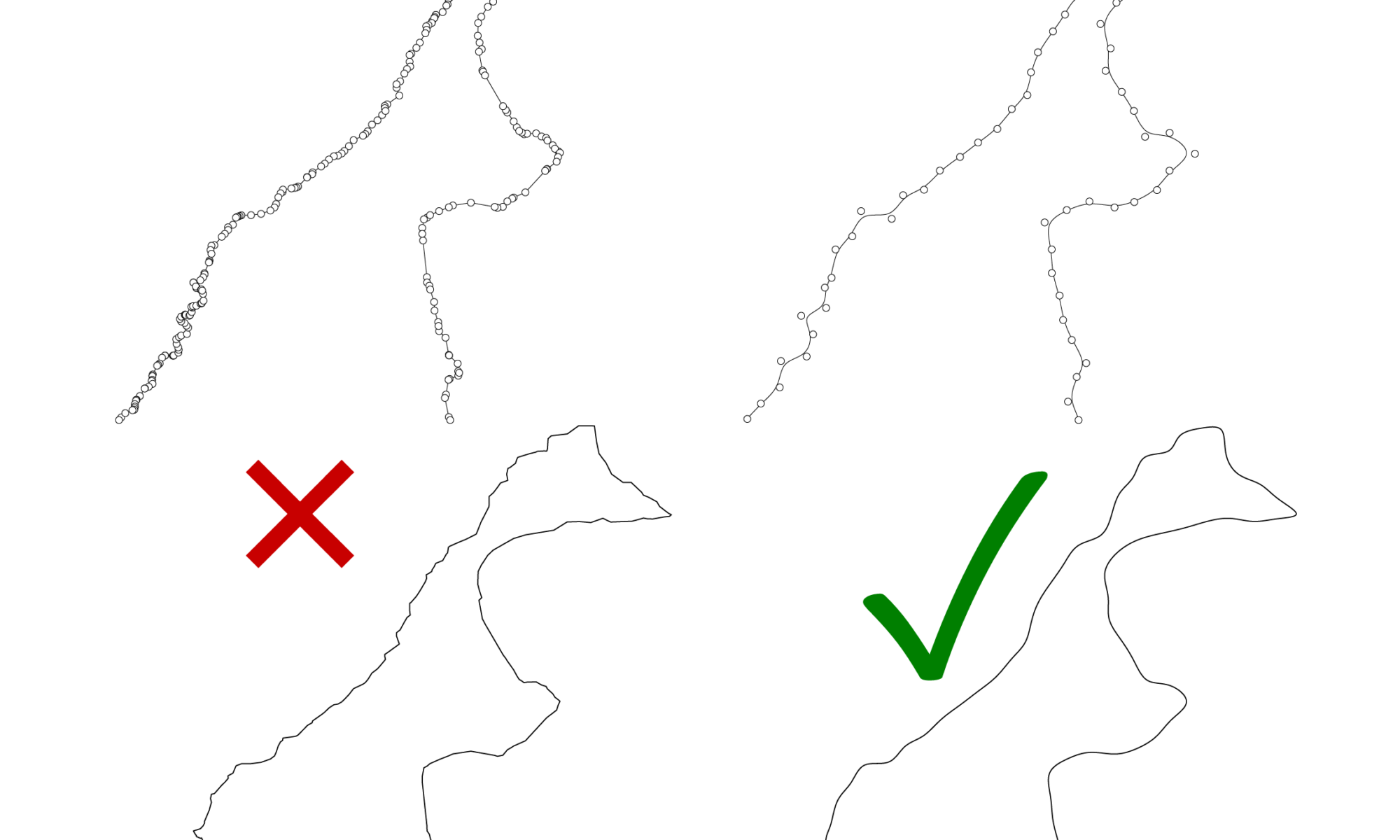
In some cases the laser-job can be continued with the “Play” button. If this doesn’t work you’ll have to restart the machine and check your file in-depth. Often geometries with too many anchor points or very small line-segments (< 0.2mm) lead to this problem.

To solve this problem try to redraw the lines in question or repair them in your CAD software by rebuilding the curve with less control points. More information on how to fix this can be found here. 
  1. Check that your lines are the correct color. (They must be 255, 0, 0 RGB for red lines.) To easily change it. Go back to the design page, select all of the lines that the incorrect color. Click on the correct color swatch.  Then click create job again.
  2. Check whether you have exported the file correctly. It is import that you select the “Vector” option not the “Raster” option.

Go back to the design page and press “create job”.

  1. Check if you are logged in
  2. Check on the produce page and check if the machine is paused. If it is try pressing the stop and then play button located on the machine.
  3.  Login to the machine with the lid closed. Restart the machine with the key (twist all the way anti clockwise and then clockwise). The machine will move to the zero position. once light on the machine turns green you should be able to autofocus.
If non of these 3 solutions work please contact a member of staff.

 Login to the machine with the lid closed. Restart the machine with the key (twist all the way anti clockwise and then clockwise). The machine will move to the zero position. once light on the machine turns green you should be able to autofocus.